


.svg)
.png)
Robust test automation in Katalon Studio starts with stable test objects. Flaky tests almost always trace back to one root cause: brittle locators that break the moment the UI changes. The best approach is to use unique, static attributes like id or custom data-qa attributes. When those aren't available, CSS and XPath are your tools.
This post covers how to write each type of selector, when to choose one over the other, and how to handle dynamic attributes using contains() and starts-with().
At a glance
| Scenario | Best Approach |
|---|---|
|
Unique ID available |
#id (CSS) or //*[@id='...'] (XPath) |
|
Custom test attribute exists |
[data-qa='...'] (CSS) or XPath equivalent |
|
Dynamic / partial ID |
[id^='prefix'] (CSS) or starts-with() (XPath) |
|
Text-based matching needed |
XPath only: //button[text()='Submit'] |
|
Navigate to sibling or parent |
XPath only: following-sibling::, parent:: |
|
Simple class or tag lookup |
.class or tag[attr] (CSS) |
Start with Stable Attributes: ID, Name, and Data Attributes
Modern web applications often expose unique identifiers or purpose-built testing attributes. These are your most reliable anchors — far less likely to change than complex nested paths. Katalon recommends anchoring your locators to stable attributes in this order of preference:
| Locator Priority Order |
|---|
|
1. id — unique and stable; always use first |
|
2. data-qa / data-testid — purpose-built for testing |
|
3. name or other stable, semantic attributes |
|
4. CSS with partial match (^=, *=) |
|
5. XPath with contains() or starts-with() |
|
6. XPath with text matching — use as a last resort |
|
❌ Avoid: absolute XPath (/html/body/...) and index-based locators ([3]) |
By ID
If a unique ID is available, it's your best option. Both CSS and XPath work well:
CSS:
XPath:
By Custom Test Attribute
If a developer has added a data-qa attribute — for example, data-qa="login-submit" — use it directly:
CSS:
XPath:
💡 Developer tips:
data-qa attributes are added by your development team specifically for testing. If your app doesn't have them yet, it's worth raising with developers — a simple tagging convention can dramatically reduce test maintenance over time.
XPath vs. CSS Selectors: When to Use Each
Both XPath and CSS selectors are powerful, but they excel in different situations. CSS selectors are faster and easier to read for most common lookups. XPath unlocks capabilities CSS simply doesn't have — like matching by text or navigating up the DOM tree.
|
Capability |
CSS |
XPath |
|---|---|---|
|
Match by ID or class |
✅ Yes |
✅ Yes |
|
Match by attribute value |
✅ Yes |
✅ Yes |
|
Partial attribute match |
✅ ^=, *=, $= |
✅ contains(), starts-with() |
|
Match by visible text |
❌ Not supported |
✅ text() |
|
Navigate to parent element |
❌ Not supported |
✅ parent:: |
|
Navigate to sibling |
✅ Next sibling only (+) |
✅ Any direction |
|
Browser parsing speed |
✅ Faster |
⚠ Slightly slower |
Rule of thumb: use CSS for fast, attribute-based lookups. Switch to XPath when you need text-based matching, parent/sibling traversal, or complex filtering.
⚠️ Avoid absolute XPath
Never start an XPath with /html/body/... — any layout change will break it. Always use relative XPath (starting with //), which searches the full DOM without depending on a fixed page structure.
How to Write Strong XPath Expressions
When ID or simple CSS isn't an option, a well-crafted XPath is your best fallback. Follow these principles:
1. Use Relative Paths
Always start with // not the full HTML path. A relative XPath is resilient to structural changes.
✅ Relative — recommended:
❌ Absolute — avoid:
2. Use Stable Attributes
Anchor to attributes that don't change with sessions or deployments — @name, @class, or custom data attributes. Avoid relying on index positions like [3] unless there's truly no alternative.
XPath:
3. Use Text Labels as Context
XPath can leverage visible labels or surrounding text — useful when an element's ID changes but its label doesn't.
XPath — find the input after a "Password" label:
4. Handle Dynamic Attributes with Functions
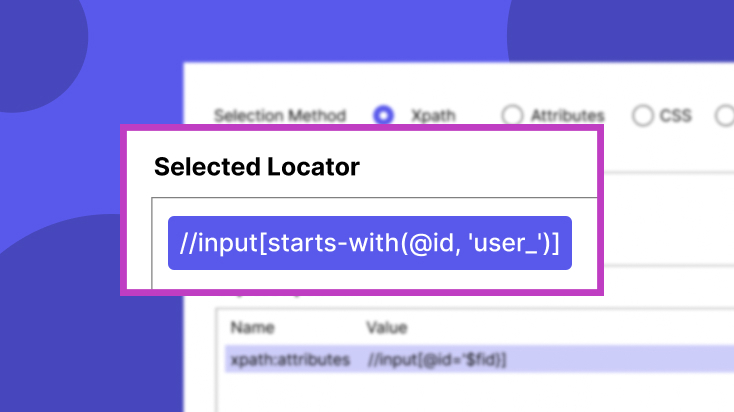
When an attribute contains a session ID or other changing value, target only the stable part using contains() or starts-with():
XPath — ID like "user_1234":
XPath — ID like "select2-abcdef-container":
💡 Developer tips:
Functions like contains(), starts-with(), and text() make your XPath resilient to partial attribute changes. Apply them whenever attributes include dynamic segments.
How to Write Strong CSS Selectors
1. Use ID and Class Selectors
If an element has a unique ID, always start there. Classes can be combined when you need more specificity:
CSS — by ID:
CSS — combined classes:
2. Use Partial Attribute Selectors
CSS supports prefix, suffix, and substring matching — the direct equivalent of XPath's starts-with() and contains():
|
XPath Function |
CSS Equivalent |
Matches |
|---|---|---|
|
contains(@id, 'session') |
[id*='session'] |
ID contains "session" |
|
starts-with(@id, 'post-body') |
[id^='post-body'] |
ID starts with "post-body" |
|
ends-with(@id, '-btn') |
[id$='-btn'] |
ID ends with "-btn" |
CSS — ID starts with "post-body-":
CSS — data-action contains "submit":
3. Avoid Deeply Chained Selectors
Long chains like div > ul > li > a are fragile — any structural change breaks them. Always aim to start from the most unique stable ancestor.
📌 CSS limitation to know:
CSS cannot match by text content or navigate upward in the DOM. If you need to find "the input next to a specific label," XPath is the right tool: //label[text()='Name']/following::input[1]
Best Practices for Stable Locators in Katalon
-
Prefer unique static attributes. Keep id and data-qa as your first choice before reaching for XPath or CSS.
-
Use relative locators. In XPath, always start with //. In CSS, start from a unique ancestor rather than chaining the full DOM path.
-
Keep locators concise. Include only what's needed to uniquely identify the element. Avoid deeply chained or indexed selectors.
-
Validate in browser DevTools. Test CSS with document.querySelectorAll('your-selector') and XPath with $x("//your/xpath") in the console before adding to Katalon.
-
Review and refactor broken locators. When a locator fails, treat it as a signal it was brittle. Refactor using contains(), starts-with(), or a stable data attribute.
Conclusion
Stable test objects are the foundation of reliable Katalon automation. The core principle is simple: start with the most stable, unique identifier available, and only reach for more complex selectors when needed.
Use CSS for fast, readable, attribute-based lookups. Switch to XPath when you need text matching, parent navigation, or sibling traversal. And when attributes are dynamic, contains() and starts-with() in XPath — or *= and ^= in CSS — let you target the stable part of any value.
When a locator breaks, don't just fix it — refactor it. Apply these techniques so it won't break again.
Put This Into Practice with Katalon Studio
Katalon's built-in Object Spy and Web Recorder automatically suggest locators. With the techniques above, you'll know exactly which ones to keep and how to refine the rest.

|
