


.jpg)
.svg)

Your Playwright suite works. The team likes writing in it, the tests are fast, and the trace viewer has saved you more than one afternoon. The friction is not in the test code at all. It is in everything around it: results that live inside one CI job's artifacts, a dashboard nobody outside the pipeline can reach, and a test that fails twice a week and gets handled as a Slack message rather than a number anyone tracks.
That gap is what Playwright test management is actually about. Not replacing the framework, and not rewriting a single spec file, but giving the runs a place to accumulate. As of August 2026 there are two supported ways to connect Playwright to Katalon True Platform, and which one fits you comes down to a single question: do you want Katalon to run the tests, or just to receive the results?
THE SHORT ANSWER
Two ways to bring Playwright into Katalon True Platform:
• Connect your repository. Katalon reads your Playwright project, turns spec files, describe blocks, and tests into a browsable test tree, and runs the suites you pick. New in August 2026.
• Upload your reports. Add @katalon/playwright-reporter to your config, keep running tests exactly where you run them now, and send the results in.
• A compatible suite needs no rewrite. A suite that does not meet the repository path's requirements may need changes, or can use report upload instead.
• The repository path needs TypeScript, and runs on Chrome or Chrome (headless) on Windows or Linux, with Chrome 145 or later selected for Linux runs.
• The report path works with any language, browser, or pipeline you already use. It needs Node.js 18 or later, @playwright/test 1.0.0 or later, a Katalon API key, and your project ID.
• They are not exclusive. Plenty of teams start with report upload and add the repository connection later.
The rest of this article walks through both paths, the constraints worth knowing before you start, and what the reporting actually gives you back.
What Playwright gives you, and what it leaves to you
Playwright ships a genuinely good reporter set. You get list, dot, line, json, and an HTML reporter, with list as the default locally and dot as the default on CI, and you can run several at once by declaring them as an array in your config. The Playwright documentation on reporters covers the options well, and the trace viewer remains one of the best debugging experiences in the category.
None of that is the gap. The gap is that a reporter, by definition, sees exactly one run. It can tell you what happened this time, in this job, on this commit. It cannot tell you whether a test has been getting less reliable over the last six weeks, which failures are still unowned, or what quality looked like across the release. Those questions are not about a run. They are about the shape of many runs, and no reporter is built to answer them.
This is also why the choice between Playwright and another framework is a separate conversation from this one. If you are still weighing frameworks, our breakdown of Playwright vs Selenium or Playwright vs Cypress is the better starting point. If you have already picked Playwright and you are trying to make it legible to people who do not read CI logs, keep reading.
Two ways to connect Playwright to Katalon True Platform
Before either walkthrough, decide which path you are on. The difference is not really technical, it is about where you want your tests to execute.
| Connect your repository Katalon runs the tests |
Upload your reports Your pipeline runs the tests |
|
|---|---|---|
| WHERE TESTS RUN | On Katalon True Platform | Your existing CI, or a developer machine |
| WHAT YOU CHANGE | A repository configuration inside Katalon. Nothing in your test code. | One reporter entry in playwright.config.ts. Nothing in your test code. |
| LANGUAGE | TypeScript only | TypeScript or JavaScript |
| BROWSERS | Chrome or Chrome (headless), on Windows or Linux. For Linux, select Chrome 145 or later. | Whatever your pipeline already runs, including Firefox and WebKit |
| ALSO NEEDS | A connected Git integration for GitHub, GitLab, Bitbucket, or Azure Repos, and playwright.config.ts at the project root | Node.js 18 or later, @playwright/test 1.0.0 or later, a Katalon API key, and your project ID |
| BEST WHEN | You want one place to trigger runs and one place to read them | Your pipeline is settled and you want visibility, not relocation |
If you are unsure, the report upload path is the lower-commitment starting point. It changes one file, leaves your pipeline untouched, and still gets your results into a shared dashboard. You can add the repository connection later without undoing anything.
Which situation sounds like yours
Four patterns come up most often, and each one points at a path. If you are running Katalon Studio suites for regression and Playwright for a newer web app, the thing you are solving for is one reporting surface across two frameworks. Both sets of results land in the same Test Runs list and the same reports, and the Testing Framework filter pulls them apart again when you want them separate. Either path gets you there.
If your Playwright tests currently run on a self-managed CI runner that nobody enjoys maintaining, you are looking at moving an existing suite onto platform infrastructure. That is the repository path: add the project as a repository, trigger runs from the platform, leave the spec files alone.
If you have invested real time in a GitHub Actions or Jenkins pipeline that works, the opposite applies. You want to report from CI you intend to keep, so you add only the reporter package and let results, history, and analytics flow into the platform while the pipeline stays exactly as it is.
And if the pressure you are feeling is organizational rather than technical, the goal is giving non-engineers visibility into Playwright coverage. Once tests are parsed into test cases and test suites, a test lead can browse what is covered in the test tree without opening the repository or reading a spec file. That one needs the repository path, since parsing is what creates the browsable structure in the first place.
Path 1: Connect your Playwright repository
This is the newer of the two. Per the August 2026 release notes, you can now connect and import a compatible Playwright project into Katalon True Platform, discover its tests, suites, and profiles, and select a suite and profile to run and review.
In practice that means Katalon reads your repository the way a teammate would: it walks the directory structure, opens the spec files, and builds a browsable tree out of what it finds. Your repository stays the source of truth, and your spec files are not rewritten.
What Katalon does when it reads your repository
The mapping is worth understanding before you connect anything, because it explains why your test tree looks the way it does afterward.
| In your Playwright project | In Katalon True Platform |
|---|---|
| A directory | A folder |
| A .spec.ts file | A folder, in both the test case tree and the test suite tree |
| A describe block | A test suite of the Automated type, inside its spec file's folder |
| A nested describe | Its own test suite, named for the full path of block titles, for example Level 1 describe tests > Level 2 describe tests |
| A test() | A test case of the Automated type, listed directly inside its spec file's folder |
| A test() outside any describe block | A test case, but no test suite, so nothing to run it from. See the conditions below. |
| A project in playwright.config.ts | A profile you select at run time |
The detail that trips people up is that this produces two trees, not one. Test cases are listed flat inside their spec file's folder, so the nesting you see in your editor does not become nested folders of test cases. The describe structure of a file shows up in the test suite tree instead. Once you know to look in both places, the layout makes sense immediately.
Before you connect: what works and what does not
Before you spend time on setup, five conditions decide whether your project will parse cleanly. Worth reading properly rather than discovering halfway through. None of these apply to report upload, which has its own short list of requirements and none of these import constraints.
-
TypeScript only. JavaScript projects are not parsed. If your suite is in JavaScript, report upload works without any of this getting in your way, and it feeds the same Test Runs and reporting surfaces.
-
Your playwright.config.ts must sit at the project root. Not in a subdirectory, not behind a workspace path. If you point the repository URL at a subdirectory, the config needs to be at the root of that directory.
-
Browsers must not be created in the script. Tests that launch or initialize their own browser instance inside the script are not supported. Use the page fixture instead. If your suite was ported from a framework where explicit browser setup was the norm, this is the constraint most likely to need a pass through your spec files. In practice the fix is small. This does not run:
This does, and it is shorter:
Browser and viewport configuration moves into playwright.config.ts, which is where the platform reads it from anyway. The projects you define there are what populate the profile list at run time, so configuration that lives in the config file is configuration the platform can honor.
-
Wrap every test() in a describe block. A test sitting outside one is still parsed and still appears in the test case list, but it belongs to no suite. Since runs are triggered from a suite, there is nothing to run it from. It is not lost, just unreachable, and this accounts for most of the confusion people hit on a first import.
-
Test step previews are not available before a run. The Steps tab on a Playwright test case detail page does not show the steps of the script, so read the script in your project instead. This does not affect results: after a run, the TEST STEPS tab of a test result shows the steps Playwright actually executed.
-
Chrome only for platform-triggered runs. The Select Configurations dialog offers Chrome and Chrome (headless), on Windows and Linux. For Linux runs, pin Chrome 145 or later so a run does not fail on an unsupported environment. This is the constraint people react to hardest, and it is worth being precise about what it actually means: you do not lose Firefox and WebKit coverage, you run it somewhere else. Execute those projects in your own environment and upload the reports, and the results land in the same place.
If any of these is a genuine blocker today, that is an argument for starting with report upload rather than an argument against the platform. Nothing about the two paths is exclusive, and both report into the same place, so adding one later does not mean maintaining two separate views of your results. If your project clears all five, setup takes about ten minutes.
Setting it up
There are four steps, and the second one is where the mistakes happen.
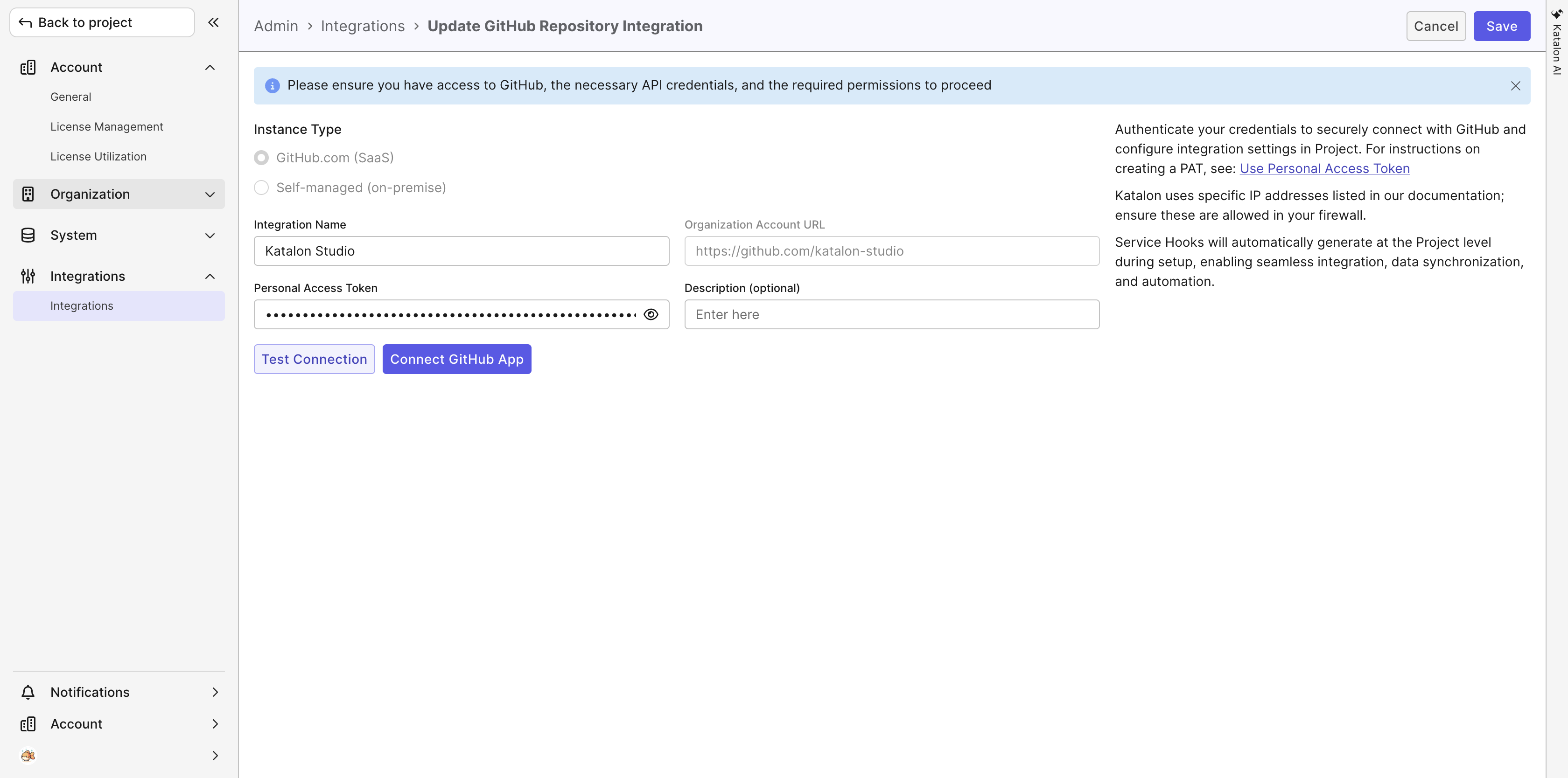
1. Create the account-level Git integration
Go to Account, then Integrations, then Integrations, and click Create Integration. GitHub, GitLab, Bitbucket, and Azure Repos are all supported.
This is account-level and you only do it once per provider, so if someone on your team has already connected the organization's GitHub, you can skip straight to step two. Connected providers show a status of either active or error, and one sitting in error, usually an expired token, cannot be used until it is fixed. Worth glancing at before you assume the problem is on the Playwright side.
2. Add the repository configuration on your project
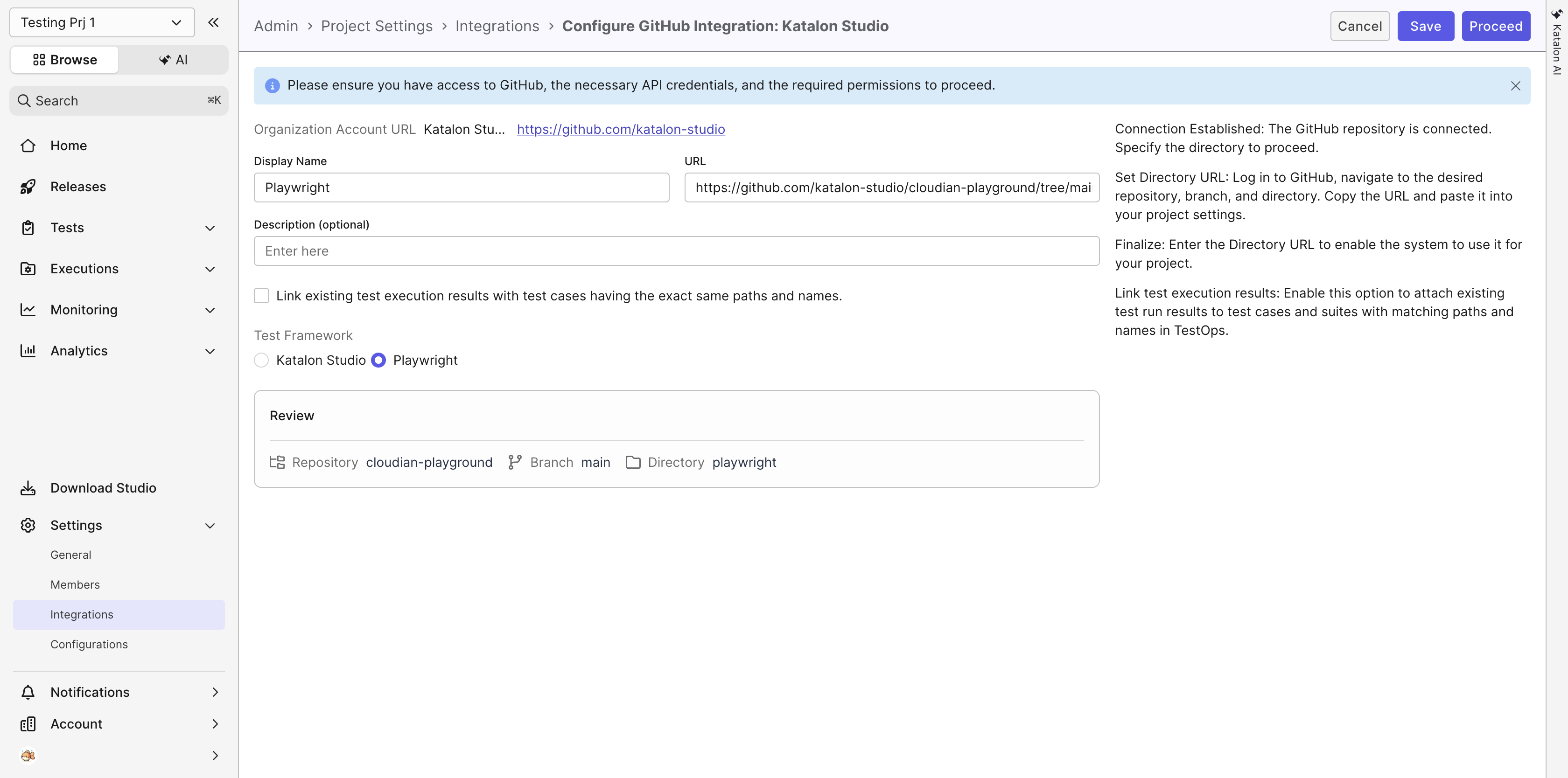
Under project Settings, then Integrations, click the new-configuration icon next to your provider. Three fields matter here.
-
Display Name is what you will see in the test tree, so name it in a way that makes the framework obvious, something like web-app-playwright.
-
URL is the full directory path including the branch, in the shape of https://github.com/org/repo/tree/main/playwright. Copy that from your browser's address bar rather than from the clone command, which is the single most common setup error.
-
Test Framework defaults to Katalon Studio and must be switched to Playwright, otherwise your spec files will not be parsed at all.
Katalon will show you the resolved repository, branch, and directory for review before you click Proceed. One provider integration can hold several configurations, so if your Playwright tests live in more than one directory, you connect each one separately rather than restructuring the repo to suit the platform.
3. Check what got parsed
This is the two-minute step that tells you the connection worked before you spend any time on a run.
-
Go to Tests, then Test Cases. Your Playwright repository is listed in the test tree under All Repositories.
-
Expand it and you will see each directory and each .spec.ts file rendered as a folder.
-
Select a spec file folder to see the test cases parsed out of it, each carrying the type Automated.
-
Then go to Tests, then Test Suites, and expand the same repository to see the suites built from your describe blocks. If both trees look like the mapping above, you are done setting up.
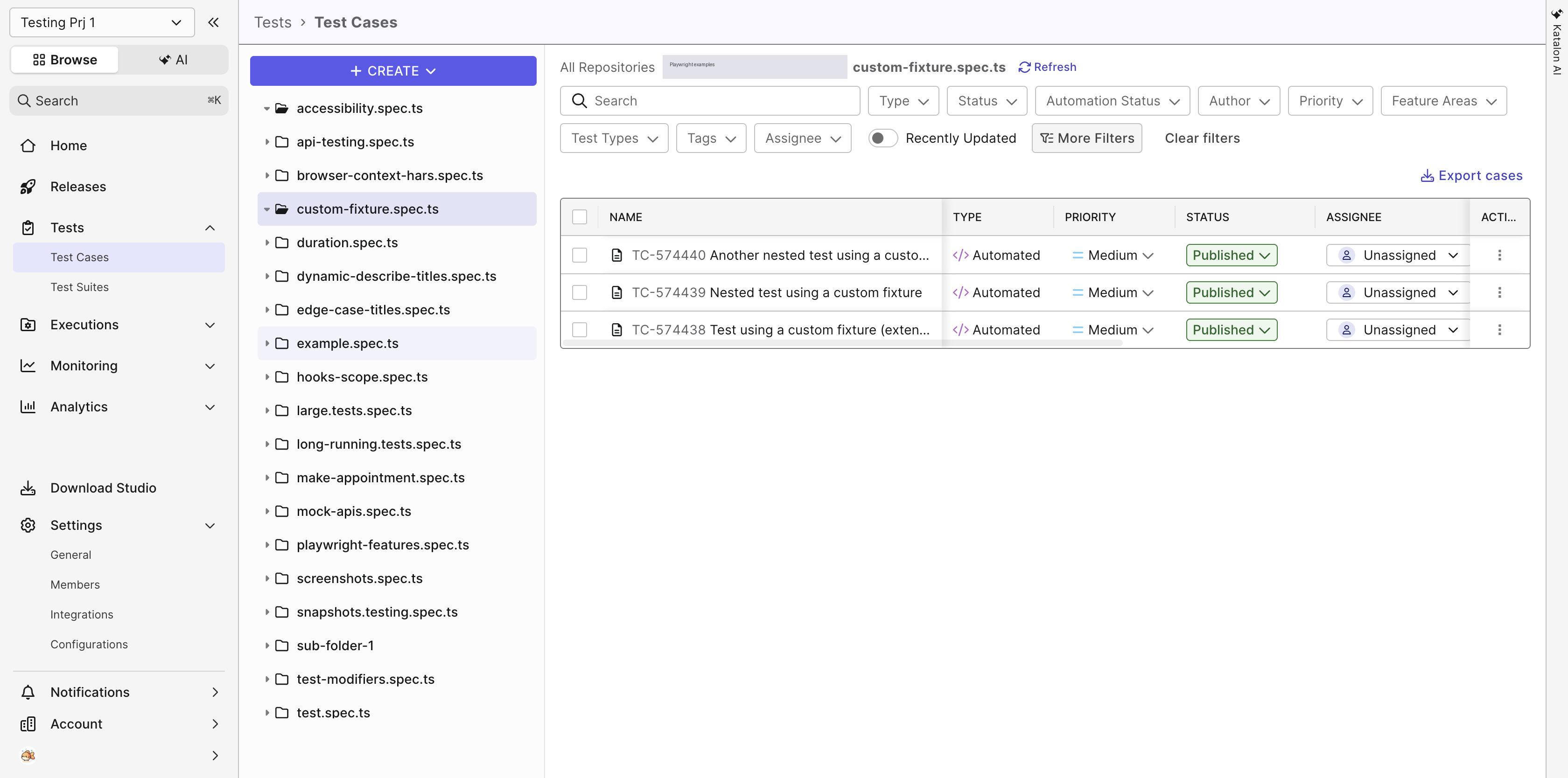
One current gap to know about while you are here: the Testing Framework value is not yet set automatically on test cases parsed from a Playwright repository. If you want to filter or report by framework, set it on the test case detail page in the Additional Information panel, and set it on the run itself too, where it also defaults to Katalon. Once it is set, More Filters on the Test Cases page lets you narrow the list to Playwright.
4. Run
-
Go to Executions, then Create Automated Test Run, and leave the test run type as Desktop and Mobile Browser.
-
Click Select Tests, expand your Playwright repository, then expand a spec file folder: the suites live inside it, which is the mapping from earlier showing up in practice. Add the suites you want.
-
In the profile column, pick the Playwright project to run with, drawn from the projects defined in your playwright.config.ts.
-
In the configuration column, add a configuration. The dialog offers Chrome and Chrome (headless) on Windows and Linux, and only supported versions appear in the list, which on Linux means Chrome 145 or later.
-
Then either run it now or schedule it for later.
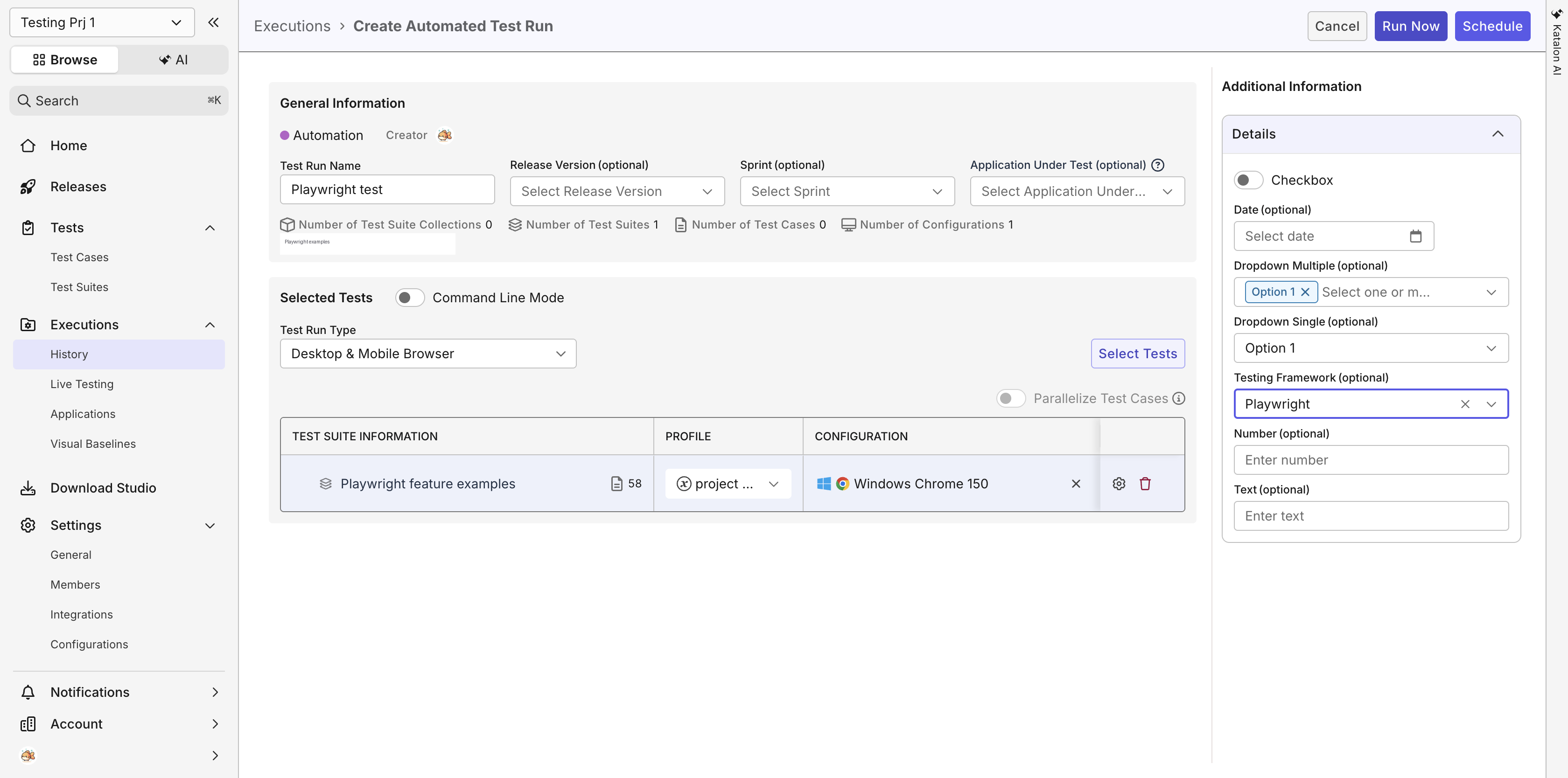
One thing to check before you start the run: every test suite you added needs its own configuration. A suite without one shows a missing configurations message and simply does not run, which is easy to miss when you have added several suites at once and configured only the first.
It is also worth setting Testing Framework to Playwright in the run's additional information, since that field defaults to Katalon and it is what makes the run filterable by framework afterward. The header of the selected tests section counts your suite collections, suites, test cases, and configurations, which is the quickest way to confirm the run covers what you think it does before you start it.
Once it starts, the run appears under Executions, then History, and you follow its progress exactly as you would a Katalon Studio run.
One recent addition makes this considerably more usable for teams working in feature branches. Since the July 29, 2026 release, you can select any branch from a connected Git repository when scheduling an automated test run, without configuring a separate test repository for each branch. If you evaluated this integration earlier in the year and gave up on the per-branch configuration overhead, that objection is gone.
After you push changes, refresh the repository in Katalon so the tree picks up new or renamed tests. Parsing happens when the repository is imported or refreshed, not continuously, so if a new test does not show up, refresh before you go looking for a cause. It is a small habit and it saves a confusing five minutes later.
If you would rather see the whole thing before trying it, the walkthrough below runs the flow end to end: connecting a Playwright project, creating an automated test run, and opening the report.
Path 2: Keep your pipeline, send the results
If your CI is settled and you have no appetite for moving execution, this path gets you the reporting without touching anything else. It works through a standard Playwright custom reporter, which means it sits alongside your existing reporters rather than replacing them. You keep list in the terminal and the HTML reporter for local debugging, and the Katalon reporter ships results to the platform alongside them.
Working with your existing pipeline does not mean working with nothing. Four things need to be in place before you start: Node.js 18 or later, @playwright/test 1.0.0 or later, a Katalon API key, and your Katalon project ID, which appears in the project URL. None of them constrains your language, browser, or CI provider, which is the actual point of this path.
Install the reporter
With those in hand, install the package:
npm install --save-dev @katalon/playwright-reporterOr with pnpm:
pnpm add -D @katalon/playwright-reporterConfigure playwright.config.ts
Add the reporter to your config alongside whatever you already run. The entry below stores reports locally through outputDir and uploads automatically when the platform environment variables are present, which means the same config file works locally and in CI without branching.
Upload during the run, or as a separate step
Two options, depending on how your pipeline is shaped. To upload during execution, set the environment variables on the run and everything happens automatically:
To decouple execution from upload, which is often cleaner in CI, add a script to your package.json and call it as a distinct step after the tests finish:
The separate-step approach runs as a distinct post-test job, which keeps test execution and result publishing as two things you can time, retry, and debug independently. Whether the upload actually runs asynchronously is up to how you wire the pipeline, not something the reporter decides for you.
These are the environment variables the reporter reads:
| Variable | Required | Default | Purpose |
|---|---|---|---|
| KATALON_API_KEY | For upload | None | Authentication |
| KATALON_PROJECT_ID | For upload | None | Target project |
| KATALON_BASE_URL | For upload | https://testops.katalon.io | Custom domain |
| KATALON_AUTH_URL | No | https://api.katalon.com | Auth endpoint override |
If you are using the separate upload script, the CLI takes --output, --api-key, and --project-id as required options, plus optional --base-url and --auth-url for custom domains.
What you get back
Both approaches report into the same Test Runs and reporting surfaces, so Playwright results sit alongside Katalon Studio results. Each result carries the test name and file path, status, duration, screenshots, videos, trace files, browser and project metadata, error messages, and stack traces. What you open is the same report you would get for a Katalon Studio run, organized into four tabs.
| Tab | What it answers |
|---|---|
| OVERVIEW | The triage view: results summary, common errors, and four counters worth knowing by name, Flakiness, Always Fail, New Failures, and Slow. Previous test runs and defects sit here too. |
| TESTS | Every test in the run with its status, duration, browser, and stability trend. Filter by status, or turn on Need Review. |
| ATTACHMENTS | The files Playwright produced during the run. |
| SESSIONS | The execution sessions the run used. |
Overview is the one you will live in. Those four counters are the questions a team actually asks after a run, and having them pre-computed is the difference between reading a report and starting an investigation.
One setting is worth getting right from the start. Once the Testing Framework field is set, Playwright results can be pulled out separately in any report using that filter, so the same data answers both what quality looks like overall and what Playwright specifically is telling you. Set it early rather than discovering later that a quarter of history cannot be sliced the way you want.
Inside a single test result
Click any test and you get three tabs: test steps, requests, and artifacts. The steps view replays execution in the order Playwright ran it. Before hooks expand to show the fixtures it set up, then each action and assertion appears as its own step named after the call in your script, so you read Navigate to "/" rather than a line number. Video, attachment, and log entries sit inline where they occurred, and video plays in the page.
From here you can switch between the full log and a filtered view, download the raw log, and override a result with Mark as Failed when the platform recorded a pass you know was not one. At the run level you can re-run everything, or push results to a connected ALM tool with Push Test Result To ADO or Push to Xray, which is often the step that decides whether QA data reaches the people planning the work.
The part a reporter cannot give you
Beside every test result is its stability trend across recent runs, and that is the piece worth dwelling on, because flakiness is not a property of a run. It is a shape across many runs. A test that fails one time in nine looks fine in any single report and obvious in a trend line. No Playwright reporter can show you this, because a reporter only ever sees one execution.
Once that history lives somewhere shared, the conversation about a flaky test stops being an argument over whether it is really flaky and becomes a decision about whether to fix it now or later. That shift is most of the value of putting a platform layer under Playwright at all.
It is also why we built Playwright into our own agent workflow rather than treating it as a foreign format. If you want to see what that looks like in practice, this walkthrough of driving Katalon True Platform end to end with Claude Code covers it, including how Playwright MCP and Katalon MCP solve different problems and are often used together.
Which path should you pick
If your pipeline is settled and what you are missing is visibility, start with report upload. It is one config change, it does not disturb anything, and you will know within a week whether the shared reporting is changing how your team handles failures.
If you find yourself wanting to trigger runs from the same place you read them, and your project meets the TypeScript and fixture requirements, connect the repository. Plenty of teams arrive here by that route rather than choosing it up front, and because both paths report into the same Test Runs, adding one does not mean splitting your results across two views.
Either way the principle is the same one from the release itself: keep writing Playwright tests exactly as you write them today, and let the platform handle everything around them. Your specs are not the problem. The silence between runs is.
Both integration paths are documented in full in the Playwright integration guide.

|
