



.svg)

If your team runs automated tests in Katalon Studio and relies on Jira test management to track defects, you already know the friction: a test fails, a tester screenshots the error, opens Jira, creates a ticket manually, pastes in the log, and attaches the file. Multiply that by dozens of failures per sprint, and you have a process that eats hours and invites human error.
Katalon Jira integration eliminates that bottleneck entirely. With the official Jira Integration plugin, every failed test step exposes a one-click bug icon. A single click opens a pre-populated Jira issue - complete with test case name, screenshots, and logs - right from the Katalon results panel.
The result? Faster automated test defect tracking, zero manual transcription errors, and a single source of truth that links every Jira ticket back to the exact test that found it. For any team serious about Katalon Studio bug reporting, this integration is non-negotiable. For the most current UI reference and release-specific notes, see the official Katalon documentation.
Prerequisites Before You Start
Before diving into how to integrate Katalon Studio with Jira Cloud, make sure you have the following in place:
- Katalon Studio with an active license
- The Jira Integration plugin for Katalon Studio, available on the Katalon Store
- The Katalon Test Automation for Jira plugin installed from the Atlassian Marketplace
- A Jira Cloud or Jira Data Center instance with admin or project-admin access
- Your Jira account email and a Jira API token for Katalon (Jira Cloud no longer accepts passwords for API calls)
Katalon Jira Integration Step-by-Step Guide
Step 1: Katalon Plugin Setup: Install the Jira Integration Plugin
The first part of the Katalon plugin setup is getting the Jira Integration plugin from the Katalon Store. It is not bundled with the IDE, so installation is a separate step.
-
Open your browser and navigate to store.katalon.com.
-
Log in with your Katalon credentials.
-
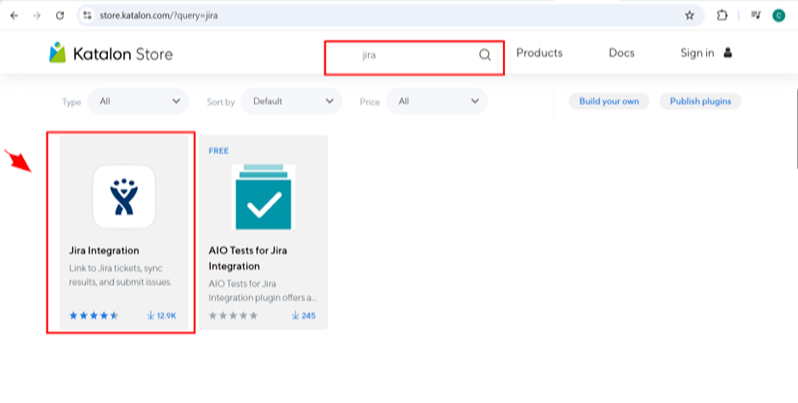
Type "jira" in the search bar and press Enter.
-
From the results, click the Jira Integration tile - the one showing ~12.9K downloads and the four-star rating. Do not confuse it with the "AIO Tests for Jira Integration" plugin.
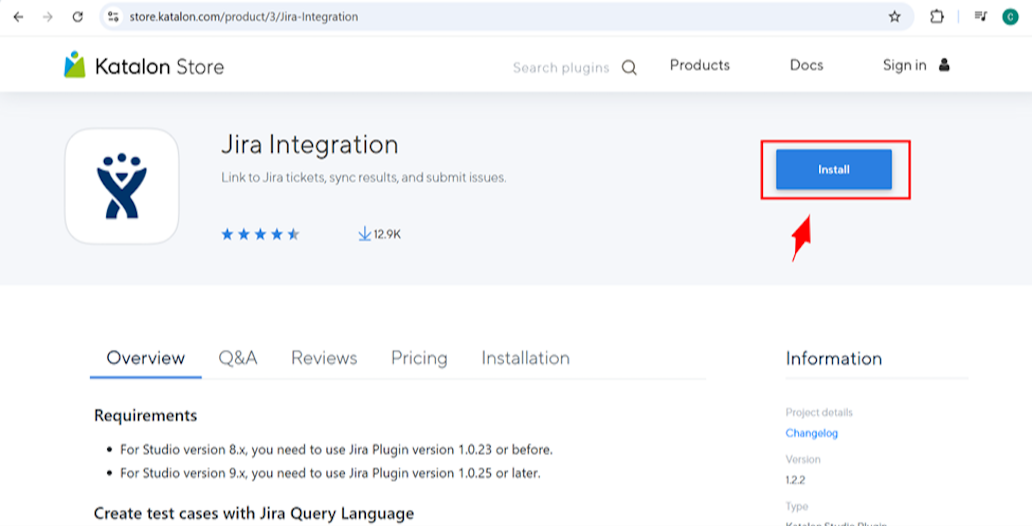
- On the product page, click the blue Install button.
Version Compatibility Note:
- Katalon Studio 8.x - use Jira Plugin 1.0.23 or earlier
- Katalon Studio 9.x - use Jira Plugin 1.0.25 or later
Always verify on the plugin's Requirements tab before installing - mismatched versions are the number-one cause of a broken integration after a Studio upgrade.
You will also need to install the Katalon Test Automation for Jira plugin directly from the Atlassian Marketplace. This enables the two-way sync between Katalon and Jira at the platform level and is required for the full integration to work.
Step 2: Reload Plugins in Katalon Studio
Installing from the store does not automatically activate the plugin inside the IDE. This is a step many guides skip, and it is why the Jira icon never shows up for some users.
- Switch back to Katalon Studio.
- Click the user/profile icon in the top-right corner of the toolbar.
- Select Reload Plugins from the dropdown.
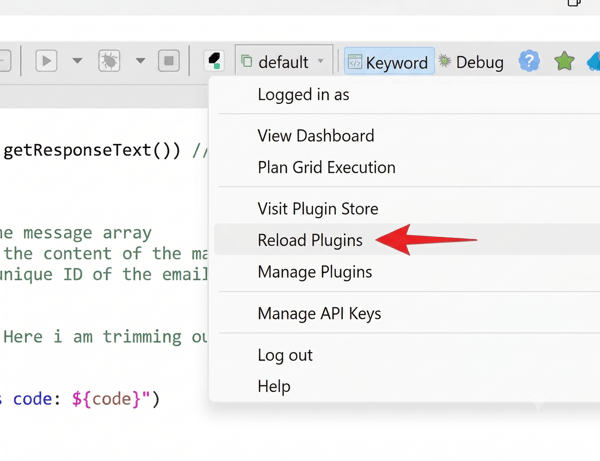
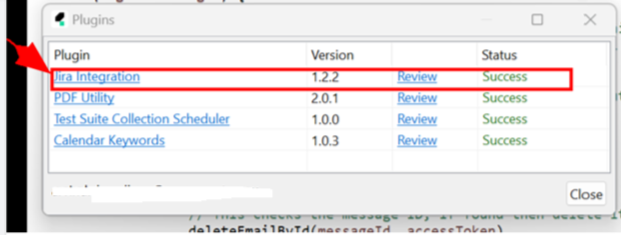
Katalon will fetch all plugins linked to your account. A Plugins dialog will appear listing every installed plugin with its version and status. Confirm that Jira Integration (your installed version) shows Status: Success before moving on.
Step 3: Open Jira Settings in Project Settings
Once the plugin loads successfully, open your project's Jira settings directly from the menu.
In Katalon Studio, go to Projects > Settings > Plugins > JIRA.
This opens the JIRA configuration panel within your project settings. Note that Jira integration is scoped to the individual project - if you need to integrate Jira with another Katalon project, you will need to repeat these steps for that project.
Step 4: Enable Integration and Configure Authentication
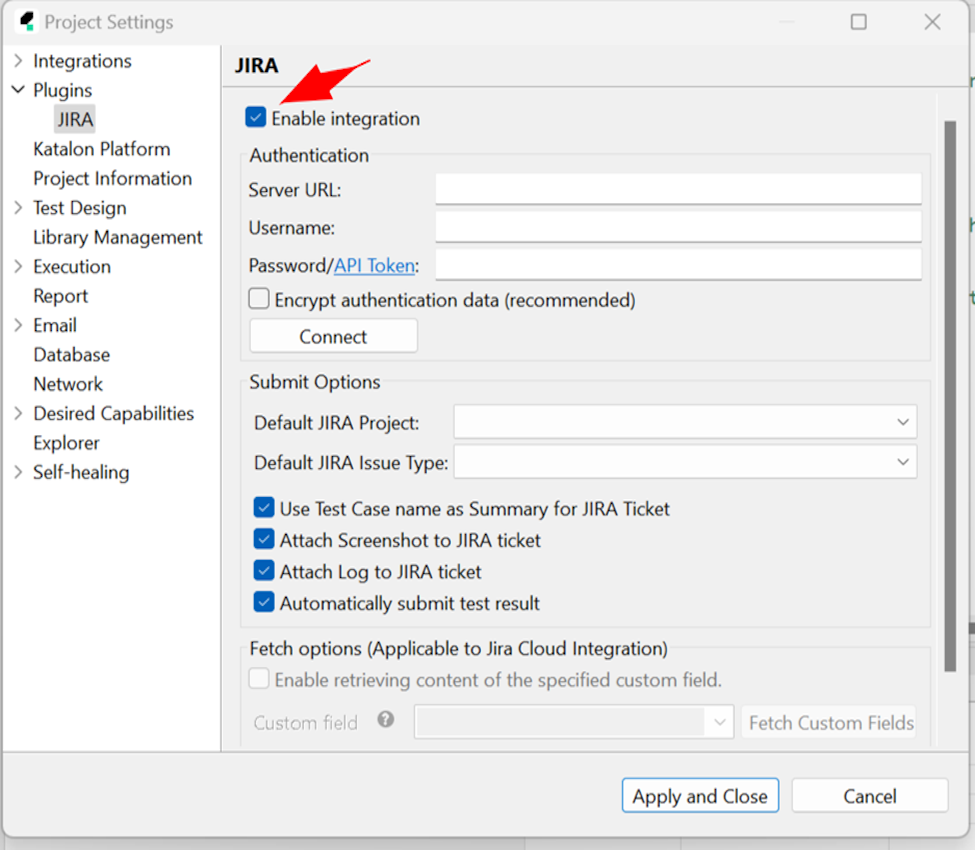
Inside the JIRA settings panel:
-
Check the Enable integration checkbox at the top.
-
Under the Authentication section, fill in:
- Server URL - format depends on your Jira type:
- Jira Cloud: https://<site_name>.atlassian.net
- Jira Data Center: https://domain (no trailing parts such as /secure; your server URL must have a valid SSL certificate)
- Username - the email address tied to your Jira account
- Password / API Token - do not use your Jira password here (Jira Cloud requires a token - see Step 5)
- Server URL - format depends on your Jira type:
- Check Encrypt authentication data (recommended) - especially important if your project file is stored in version control.
Step 5: Generate a Jira API Token for Katalon
This is the step most tutorials gloss over, and it is where most setups break. Understanding the Jira API token Katalon requirement is critical: Jira Cloud discontinued password-based authentication for API access. You must generate a token.
Here's exactly how to do it:
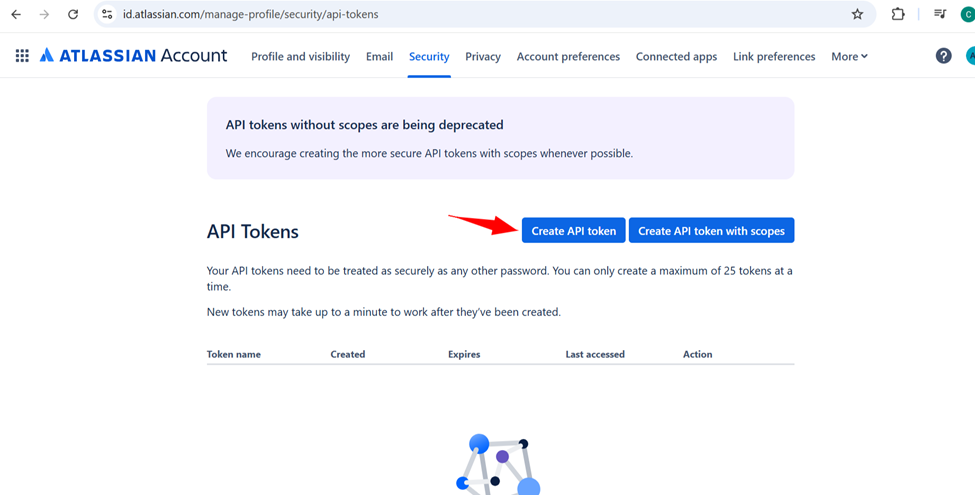
- While logged into your Atlassian account, navigate to: https://id.atlassian.com/manage/api-tokens
- Click Create API Token.
- In the dialog that appears:
- Name: Use something memorable, like Jira Katalon Token, so you know what it's used for when you review your tokens later.
- Expires on: Set a date within one year - Atlassian enforces a one-year maximum.
- Click Create.
Do not close this dialog until you have copied the token. Atlassian shows it exactly once. Store it immediately in a password manager or a secure note. If you lose it, you will need to generate a new one and update your Katalon settings.
Step 6: Connect Katalon to Jira
Back in Katalon Studio's JIRA Project Settings:
- Paste the API token into the Password / API Token field.
- Click Connect.
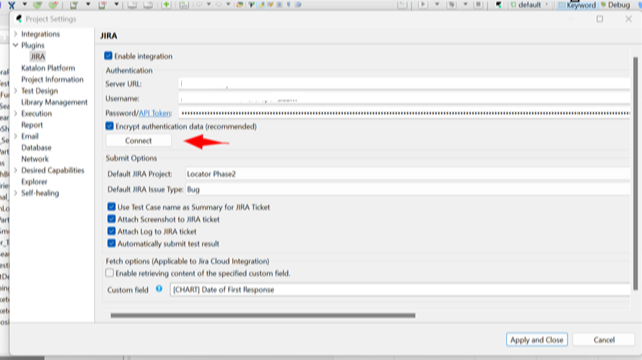
A successful connection is confirmed when the Submit Options dropdowns below populate with your Jira projects and issue types. If they remain empty, your credentials did not authenticate - revisit the token and Server URL.
Step 7: Configure Submit Options and Save
With a live connection, configure default submission behavior:
| Setting | Recommended Value |
|---|---|
| Default JIRA Project | Your QA or sprint project (e.g., Locator Phase2) |
| Default JIRA Issue Type | Bug |
| Use Test Case name as Summary | ✓ Checked |
| Attach Screenshot to JIRA ticket | ✓ Checked |
| Attach Log to JIRA ticket | ✓ Checked |
| Automatically submit test result | ✓ Checked (enables hands-free defect tracking) |
Click Apply and Close. Your Jira integration with Katalon is now fully operational.
How to Submit Bugs from Katalon to Jira Automatically
This is the section that makes everything above worth it. Here is the complete workflow for Katalon Studio bug reporting after a test run.
Run your test suite as normal
Execute any test suite or test case in Katalon Studio. Once the run completes, open the Results panel.
Identify failures and click the bug icon
For every failed test case, a small Jira bug icon appears to the right of the row. This is your one-click gateway to submit bugs from Katalon to Jira automatically.
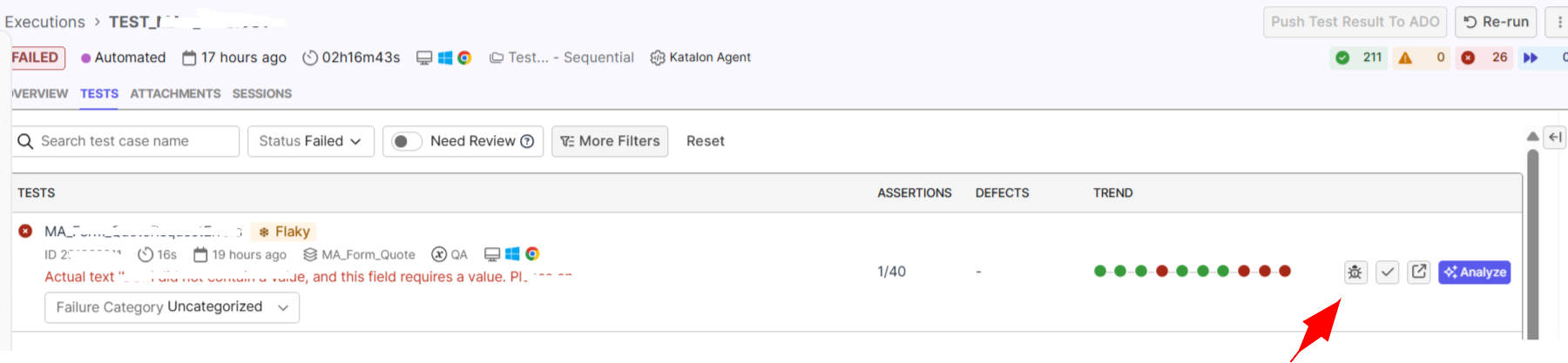
Click the icon to open the Linked JIRA Issues dialog.
Choose how to log the defect
The dialog presents three options:
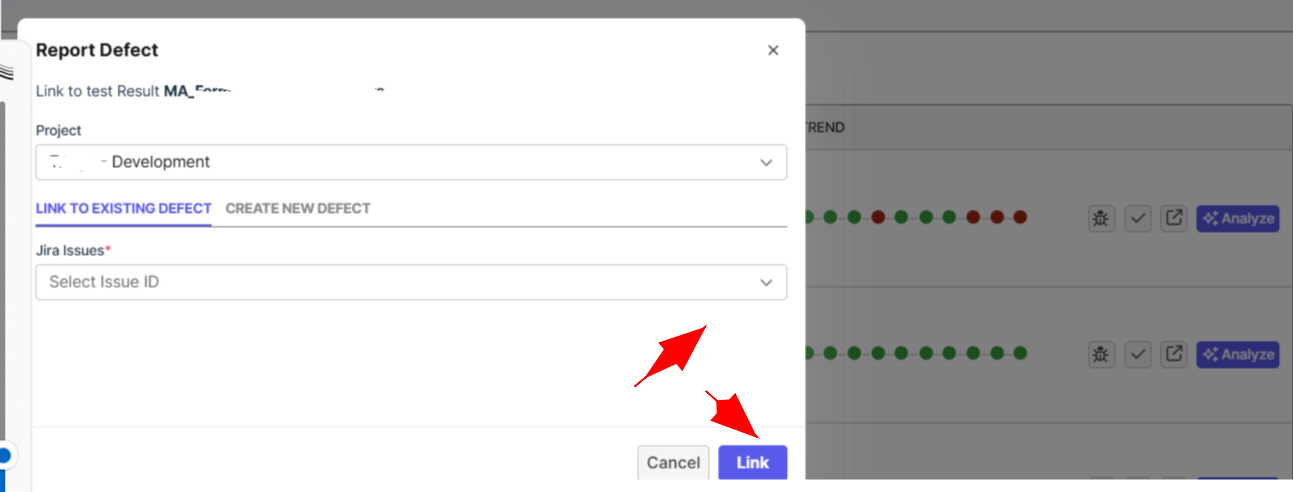
- Create as New - Creates a fresh Jira issue pre-filled with the test name, logs, and screenshots. Use this for newly discovered bugs.
- Create as Sub Issue - Attaches the failure as a sub-task under an existing parent ticket. Useful for regression failures tied to a known feature ticket.
- Link to Existing Issue - Links the test result to a Jira ticket already in your backlog. Best when the bug was already reported via another channel.
Review and submit on the Jira portal
Katalon opens the Jira Create Issue form with the following already populated:
- Project - your default project
- Issue Type - Bug
- Summary - the test case name (e.g., CURAHealthLogin)
- Attachments - screenshot and log file queued and ready
Add any additional context - steps to reproduce, environment, severity - and click Create. The ticket is filed in Jira instantly, and a link back to it appears in Katalon's results panel, completing the loop between automated test defect tracking and your Jira test management workflow.
Linking and Managing Jira Issues from Test Cases
Beyond submitting bugs from test results, the integration lets you link Jira issues directly to individual test cases in Katalon Studio's Test Explorer. This is useful when you want to map a specific test case to an existing Jira ticket - whether for traceability, BDD requirement linking, or audit purposes.
Edit and link existing Jira test case
- In Katalon Studio, navigate to the Test Explorer and locate to open the required test case.
- Click on the JIRA integration tab within the test case.
- To add and link a Jira issue to your test case, click Edit JIRA issue.
- The Link to JIRA Issue dialog opens. Enter your new JIRA issue key.
- (Optional) Click Override test case description so you can also edit the test case description.
- Replace existing test case description in the Property tab with the new description retrieved from the new Jira issue.
- Click OK to apply the changes to the test case.
Troubleshooting
-
Problem: Jira issue cannot be found:

-
Reason/Workaround: You have either entered the wrong issue key or the Jira issue is no longer available from your fetched account. Ensure that you have entered the correct Jira issue key.
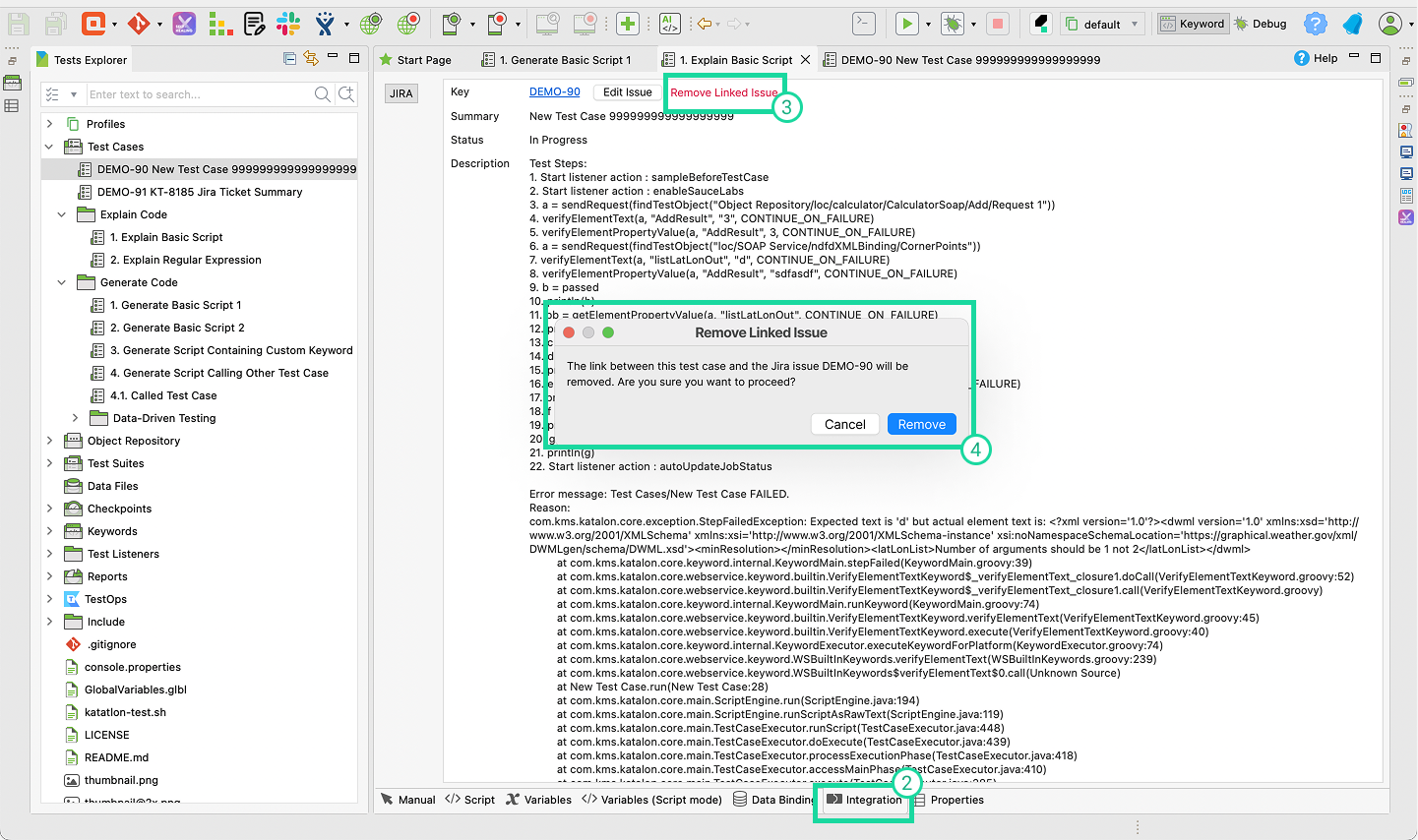
Remove a linked Jira issue
-
In Katalon Studio, go to the Test Explorer and find the test case you want to update.
-
Click on the Integration tab.
-
Select Remove Linked Issue.
-
When the confirmation dialog appears, click Remove to confirm.
Importing Test Cases from Jira via JQL (BDD Cloud Integration)
If your team writes BDD scenarios in Jira, you can pull test cases directly into Katalon Studio using Jira Query Language. This is one of the most powerful - and underused - aspects of the integration.
- From the Katalon toolbar, select Jira > Import Test Case from JIRA JQL. The Import Test Case from JIRA JQL dialog opens.
- Fill in your JQL script in the Jira JQL box. For example, to import Bug-type test cases from the TDAP project with Completed status: project = TDAP AND issuetype = Bug AND status = Completed ORDER BY created DESC. For JQL syntax reference, see the Atlassian JQL documentation.
- By default, the Import BDD feature files box is selected - this allows you to import BDD feature files to run BDD tests. Uncheck this if you do not need BDD test execution.
- Click OK.
- The Test Case Folder Selection dialog opens. Select the destination folder to store the imported issues and click OK.
- A Jira Issues dialog opens. Click OK to import the test case from Jira.
Once imported, the test case name reflects the Jira ticket summary and the description contains the Jira ticket content. If you imported BDD feature files, Katalon Studio creates a corresponding feature file in the Include/Feature folder. Note that you can only import test cases from a Jira ticket once - this action cannot be repeated for the same ticket.
If you conduct BDD testing, you can view the results directly in Katalon True Platform.
Pro Tips for Getting the Most Out of This Integration
Leverage JQL for two-way traceability. The integration is bidirectional. Navigate to Jira > Import Test Case from JIRA JQL to pull Jira issues directly into Katalon as test cases. This is a powerful feature for requirement-based testing.
Automate fully with CI pipelines. Enable "Automatically submit test result" if you run nightly pipelines. Combined with Katalon's CI/CD pipeline integrations, every failure auto-creates a Jira ticket with zero human intervention required. This is what truly hands-free automated test defect tracking looks like.
Use True Platform's two-way Jira sync for full lifecycle visibility. Beyond the Studio plugin, Katalon True Platform's Test Management component syncs Projects, Releases, Requirements, and Defects directly from Jira. This means requirement traceability and release readiness are always up to date - no manual reconciliation between your defect tracker and your test management layer.
Remember the project scope. Jira integration is configured per Katalon project. If you work across multiple projects, each one needs its own integration setup - a quick repeat of the steps above, not a new plugin install.
Set an API token rotation reminder. A lapsed Jira API token for Katalon silently kills the integration mid-sprint with no obvious error. Add a calendar reminder two weeks before your token expires and rotate it proactively.
Encrypt your credentials. The "Encrypt authentication data" checkbox matters whenever your .prj file is committed to a shared Git repository. Don't skip it.
Validate plugin version before every Studio upgrade. This is the single most common reason the integration breaks. The plugin version requirement changes between Katalon Studio 8.x and 9.x - always check the Requirements tab on the Katalon Store listing before you upgrade.
Troubleshooting Common Issues
| Problem | Likely Cause | Fix |
|---|---|---|
| Connect button fails | Wrong API token or Server URL | Re-generate the token; remove any trailing slash from the URL |
| Bug icon not visible in results | Plugin not loaded | Reload Plugins from the user icon; confirm Status: Success |
| Default JIRA Project dropdown is empty | Authentication not connected | Click Connect first - dropdowns only populate after a successful auth |
| Token expired error | Jira API token past expiration | Generate a new token at id.atlassian.com and update Project Settings |
| "Jira issue cannot be found" when linking | Wrong issue key entered, or the Jira issue no longer exists in your account | Verify the issue key is correct and that the Jira account used has access to that project |
| Plugin installed in Store but missing in Studio | Studio/plugin version mismatch | Verify the correct plugin version for your Studio version (8.x vs. 9.x) |
Summary
Getting Katalon Jira integration running is a one-time, under-ten-minute setup that pays dividends every single sprint. By learning how to integrate Katalon Studio with Jira Cloud, you eliminate the manual bridge between your automated test results and your defect backlog - and you give every stakeholder, from developer to product manager, a clear, traceable line between a failing test and the ticket being worked.
Here is the complete setup at a glance:
- Install the Jira Integration plugin from the Katalon Store and the Katalon Test Automation for Jira plugin from the Atlassian Marketplace
- Reload plugins in Katalon Studio and confirm Status: Success
- Navigate to Projects > Settings > Plugins > JIRA
- Enable integration and fill in your authentication details
- Generate a Jira API token for Katalon at id.atlassian.com
- Paste the token, hit Connect, and set your default project and issue type
- Run a test and submit bugs from Katalon to Jira automatically with a single click
If Katalon Studio bug reporting and automated test defect tracking are priorities for your team - and they should be - this integration is the most direct path to getting there. For teams on Katalon True Platform, the bidirectional Jira sync at the test management layer extends that traceability across your entire quality lifecycle, not just individual test runs.
|
