


.svg)
-1.png)
Here’s an easy-to-understand and straight-to-the-point guide to scroll down in Selenium.
Let’s try this test case: Scroll to a section on a Wikipedia page and screenshot. We have the following test steps:
- Open Browser: Launch browser and navigate to "https://en.wikipedia.org/wiki/Wikipedia."
- Scroll to Element: Scroll to the "Articles in the 20 largest languages" caption.
- Take Screenshot: Capture a screenshot and save it at the following file path: /Users/hy.nguyen/Downloads/screenshot_of_wiki_page.png.
- Close Browser: Close the browser window.
You can customize the element according to your needs.
How to scroll to a specific web element in Selenium?
The command we use is:
((JavascriptExecutor) driver).executeScript("arguments[0].scrollIntoView(true);", element);- JavascriptExecutor allows Selenium to execute JavaScript commands directly on the browser. It's particularly useful for actions like scrolling, where Selenium's built-in methods might not be sufficient.
- scrollIntoView() method scrolls the page until the specified element is in view. The parameter true ensures that the element is aligned with the top of the view.
Here’s the full code:
import org.openqa.selenium.By;
import org.openqa.selenium.OutputType;
import org.openqa.selenium.TakesScreenshot;
import org.openqa.selenium.WebDriver;
import org.openqa.selenium.WebElement;
import org.openqa.selenium.chrome.ChromeDriver;
import org.openqa.selenium.io.FileHandler;

import java.io.File;
import java.io.IOException;

public class WikipediaTest {

    public static void main(String[] args) {
        // Set up the path to the ChromeDriver
        System.setProperty("webdriver.chrome.driver", "/path/to/chromedriver");

        // Launch the Chrome browser
        WebDriver driver = new ChromeDriver();

        try {
            // Navigate to Wikipedia page
            driver.get("https://en.wikipedia.org/wiki/Wikipedia");

            // Find the element for "Articles in the 20 largest languages" caption
            WebElement element = driver.findElement(By.xpath("//*[contains(text(), 'Articles in the 20 largest languages')]"));

            // Scroll to the element
            ((org.openqa.selenium.JavascriptExecutor) driver).executeScript("arguments[0].scrollIntoView(true);", element);

            // Take a screenshot and save it
            File screenshot = ((TakesScreenshot) driver).getScreenshotAs(OutputType.FILE);
            FileHandler.copy(screenshot, new File("/Users/hy.nguyen/Downloads/screenshot_of_wiki_page.png"));

        } catch (IOException e) {
            System.out.println("Screenshot capture failed: " + e.getMessage());
        } finally {
            // Close the browser
            driver.quit();
        }
    }
}
How to scroll down by a certain number of pixels in Selenium?
To scroll down, use:
((JavascriptExecutor) driver).executeScript("window.scrollBy(x, y);");The window.scrollBy(x, y) scrolls the page by a specified amount of pixels. The parameters x and y are for the horizontal and vertical pixel values. For example, if you want to scroll down by 500 pixels and no horizontal scrolling, use “window.scrollBy(0, 500);”.
Let’s check out a full code snippet:
import org.openqa.selenium.JavascriptExecutor;
import org.openqa.selenium.WebDriver;
import org.openqa.selenium.chrome.ChromeDriver;

public class ScrollByPixels {
    public static void main(String[] args) {
        // Set the path to your ChromeDriver
        System.setProperty("webdriver.chrome.driver", "/path/to/chromedriver");

        // Initialize WebDriver
        WebDriver driver = new ChromeDriver();

        // Open a website
        driver.get("https://www.example.com");

        // Create an instance of JavascriptExecutor
        JavascriptExecutor js = (JavascriptExecutor) driver;

        // Scroll down by 500 pixels (you can change this value)
        js.executeScript("window.scrollBy(0, 500)");

        // Close the browser
        driver.quit();
    }
}
How to automate scroll down action using Katalon?

Here’s how you can also do it in Katalon-a comprehensive automation testing tool. First, download the latest version of Katalon Studio where you can write no-code/low-code test cases with ease.
Once you successfully login, you should arrive at the Katalon Studio IDE. Let’s start by creating a new test case.

Katalon follows the Page Object Model. All test objects are stored in a hierarchical fashion: each test object belongs to a specific web page, all of which are stored in the Object Repository. The advantage of this approach? Since UI elements are separated from test scripts, any change in the web application's UI (e.g., changing an element's ID) can be updated in just one place—the page object class—rather than across multiple test cases.

Let's capture some objects with Katalon Spy Web Utility.

After specifying which page you want to test, click Start. Let’s try capturing the div of the “Articles in the 20 largest language editions of Wikipedia” chart in the Wikipedia page about Wikipedia. To capture, simply right-click on the element and choose Capture Object. Objects only need to be captured once. From that point onwards, you can easily reuse them in any test case.

Here’s our captured object. Click Save and you now have your test object!

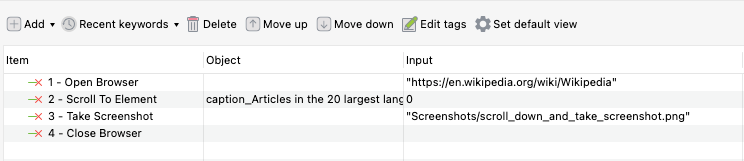
Now let’s craft our test case by leveraging Katalon’s library of keywords to command the system to perform your test steps, including the scrolling action. We simply click “Add” and choose the necessary keywords, which include:
- Open Browser: launch the browser and navigate to the Wiki page on Wikipedia.
- Scroll To Element: scroll to the element we've just captured. You simply drag-and-drop the object from the Object Repository in there.
- Take Screenshot: take a screenshot and save to the specified file path.
- Close Browser: close and end the session.
Finally, choose your environment and click Run. Let’s take a look at how it’s all done:
There is also the Scroll To Position keyword where you can set the x position and y position keyword similar to how it’s done in Selenium.


|
