


.svg)

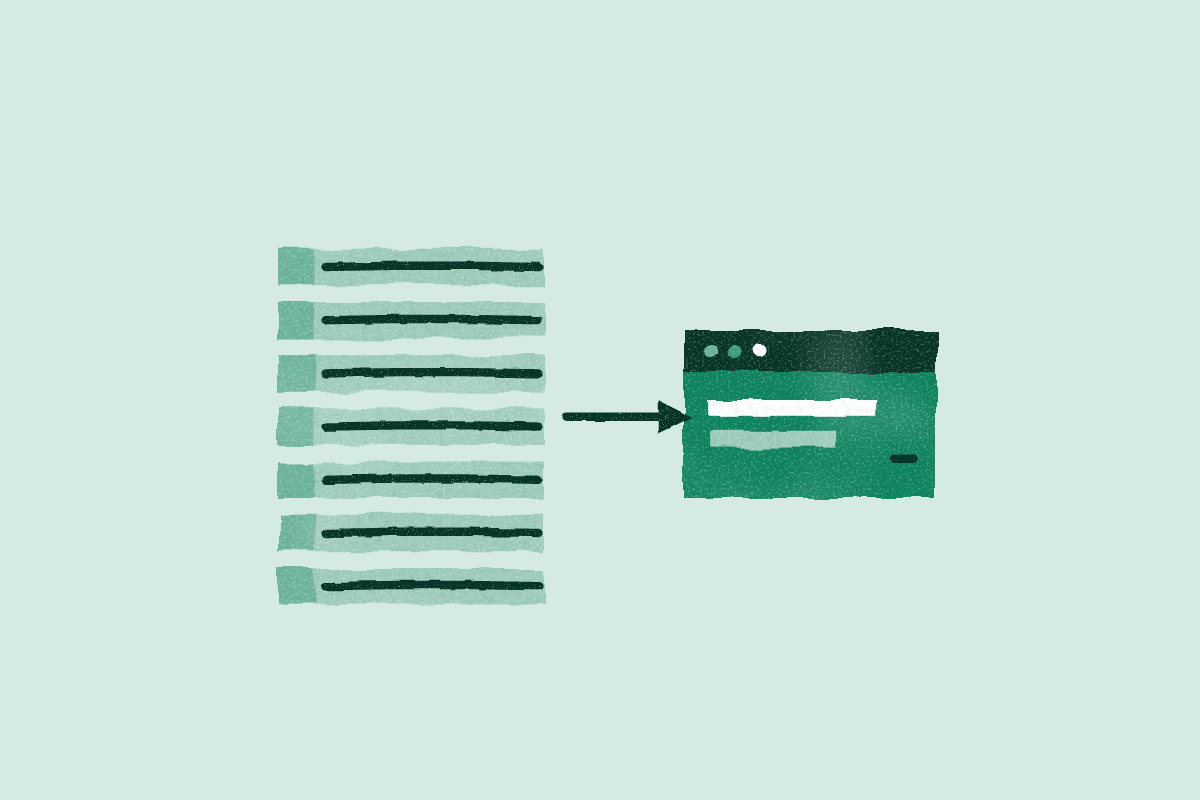
Data-driven testing turns one test case into many: one script, one data file, one iteration per row. Katalon AI Assistant already writes your test cases and test data in minutes. Binding them together, though, was still a manual job that could take far longer. In Katalon Studio 11.6, the assistant does that part too.
Fast Generation, Slow Last Step
Katalon AI Assistant can generate the script and the data from a requirement in a single conversation.
Then the clock slowed down. Before the test could use that data, someone had to bind it by hand: add the variables, add the test data file, set each variable type to Data Column, map each variable to a column, and enable the test suite option that applies test case binding.
Skip one step and the run quietly uses default values instead of your data.
Where the Time Actually Went
Manual binding was rarely a two-minute task. Testers new to Studio first had to learn how binding works, which meant reading the docs before touching the Data Binding tab.
Experienced testers knew the steps but repeated them for every test case, then spent more time tracing a run that used the wrong column.
The more the assistant generated, the bigger the gap became. Ten generated test cases meant ten rounds of the same clicks. AI made most of the setup quick, and the last step decided how long the whole job took.
The manual path looked like this:
- Open the test case and add each variable.
- Open Data Binding and add the test data file.
- Set each variable type to Data Column.
- Map every variable to the right column.
- Add the test case to a test suite.
- Tick Use variables and binding at test case.
- Run, then find the column you mismatched.
What Changed in Katalon Studio 11.6
Katalon AI Assistant now handles data binding in the same request. From a written requirement, it can create the test cases and their variables, generate internal test data with a row per case, bind the data at the test case level or the test suite level, and run the test suite.
There are no docs to read first and no mapping to click through. You review the plan, the binding, and the run.
See It in Katalon Studio
One prompt, from requirement to bound test suite
In the video, the assistant creates the test cases and test data, binds them at the test case and test suite level, and runs every data row as its own iteration.
Sample Prompts
Paste the requirement and name the binding level you want. This first prompt takes you from requirement to a bound, running test suite:
If the tests and data already exist, you can ask for the binding only, here at the test suite level:
Scope in This Release
Supported: binding test data to test case variables at the test case and test suite level, for input values such as usernames, passwords, and form fields.
Not yet supported: binding into web service request bodies or locators. Send requests for these through Katalon Support.
Try It on Your Own Requirement
Katalon AI Assistant is built into Katalon Studio. Download Katalon Studio 11.6 and try the sample prompt on one of your requirements.
|
