


.svg)

Why API testing belongs in every QA workflow
API testing has become one of the highest-value activities a QA team can invest in. Because APIs operate at the business logic layer, below the user interface and above the database, tests written there are faster to execute, more stable across releases, and far cheaper to maintain than their UI counterparts. In the test pyramid, API tests occupy the middle tier: broader than unit tests, but a fraction of the cost of end-to-end UI suites.
This guide is about doing it, not theorizing about it. If you have Katalon Studio installed and a REST endpoint to test, you can follow this from start to finish in under 30 minutes. By the end you will have a working API test, a verification that confirms the response is correct, and results flowing into True Platform's Test Management module alongside the rest of your test program.
For a deeper look at how to think strategically about API testing coverage, security, and CI/CD integration, see API Testing Strategy: 10 Essential Steps From Endpoints to Automation. This guide focuses on the hands-on execution path inside Katalon Studio.
Before you start
You need two things to follow this guide:
Katalon Studio installed. Download it free from katalon.com/download. Sign in with your Katalon account when it opens. If you are on a True Platform subscription, use your True Platform credentials.
A REST endpoint to test. If you do not have one from your own project, the public JSONPlaceholder API is ideal for practice: https://jsonplaceholder.typicode.com/posts/1. It requires no authentication, returns predictable JSON, and is always available. That is all you need to get started. No framework setup, no dependencies, no configuration files.
Optionally, have your Katalon True Platform organization connected to Studio before you reach Step 8. Instructions for that are in the final section.
How API test projects are structured in Katalon Studio
Before writing a single test, it helps to understand how Katalon Studio organizes API testing work. Everything lives inside the Tests Explorer panel, which has four components that work together:
| Project structure at a glance Four components, one coherent test program. |
|
|---|---|
| Object Repository | Stores all your Web service endpoints: URL, request method, headers, authentication, verification scripts, and variables. Web service request objects are integrated by a folder system for better management. Think of each entry as a reusable request object, not a test. |
| Test Cases | Where test reporting happens. A test case calls one or more requests from Object Repository, adds assertions at the case level, and produces a formal pass/fail result that feeds into reports and dashboards. |
| Test Suites | Groups of test cases that run together and produce a combined report. Test cases at the suite level can be executed with a data-driven approach. Test reports are generated at the suite level. |
| Test Suite Collections | A collection of test suites for verifying a larger target, with specific test environments configured at this level. Used for cross-environment execution at scale. |
The relationship is straightforward: Object Repository holds the request objects, Test Cases call them and assert on their results, Test Suites group cases for execution and reporting, and Test Suite Collections coordinate multi-environment runs. Your API tests in this guide will follow that path from top to bottom.
Step 1: Create a new project and Web Service Request
Open Katalon Studio and create a new project via File > New > Project. Give it any name.
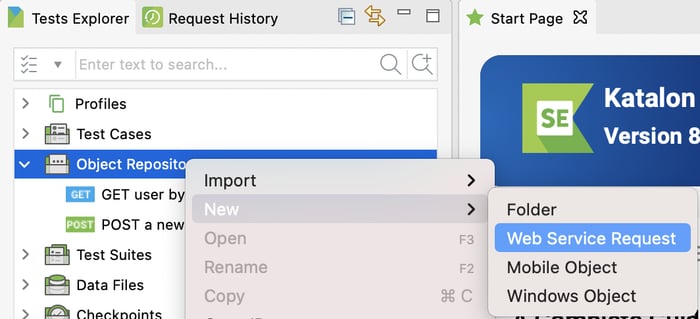
In the Tests Explorer panel on the left, find Object Repository. Right-click it and choose New > Web Service Request.
A dialog opens. Fill in two fields:
Name: give the request a descriptive name, for example GetPost.
Request Type: set this to RESTful. This field is required and cannot be changed after creation, so confirm it before clicking OK. If you are testing a SOAP service, select SOAP here instead; everything else in this guide follows the RESTful path.
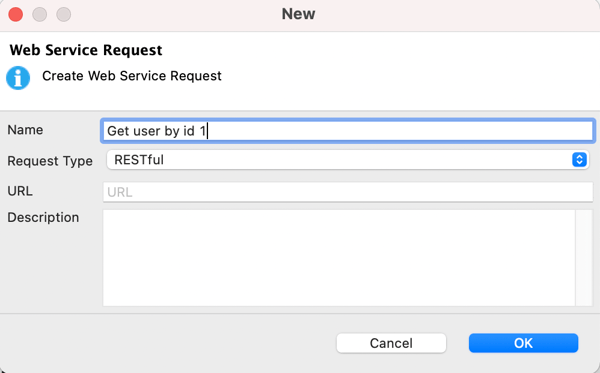
The URL field is optional at this stage. You can leave it blank and fill it in the next step. Click OK.
Step 2: Configure the request
The request editor opens with seven tabs. For your first test you will work across four of them.
URL and method
Enter the URL in the field at the top of the editor:
https://jsonplaceholder.typicode.com/posts/1
Set the Request Method to GET using the dropdown next to the URL field. For this endpoint, GET is the correct method because we are reading an existing resource, not creating or modifying one. Make sure the method matches what the endpoint expects: a mismatch between method and URL produces a runtime error rather than a useful response.
Follow redirects
The Follow redirects option controls how Katalon Studio handles HTTP 3xx responses. When enabled, Studio automatically follows the redirection path to the final destination without any intervention. When disabled, the request stops at the redirect response, which is useful when you want to explicitly test or inspect the redirect itself.
You can enable Follow redirects by default for all requests in your project via Project > Settings > Execution > Web Service, then selecting Enable follow redirects by default. For the JSONPlaceholder endpoint, the default behavior is fine.
Authorization
The JSONPlaceholder endpoint is public and requires no authentication. For APIs that do require it, open the Authorization tab and select your auth type from the dropdown.
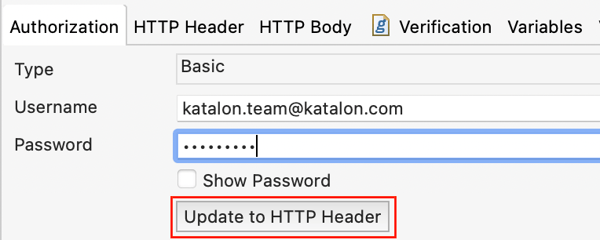
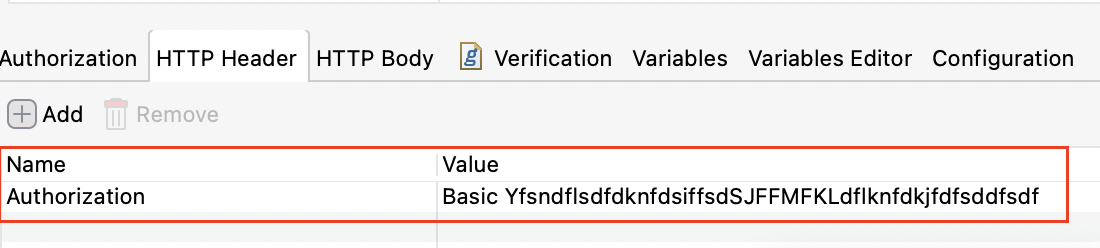
For Basic auth specifically: enter your username and password, then click Update to HTTP Header. Without that click, the credentials are not applied to the request. After clicking, you will see the authorization header appear in the HTTP Header tab, which confirms it will be sent. For other authentication types such as Bearer Token, OAuth 2.0, and API Key, the configuration flow differs - refer to Katalon Docs for the steps specific to each type.
Variables
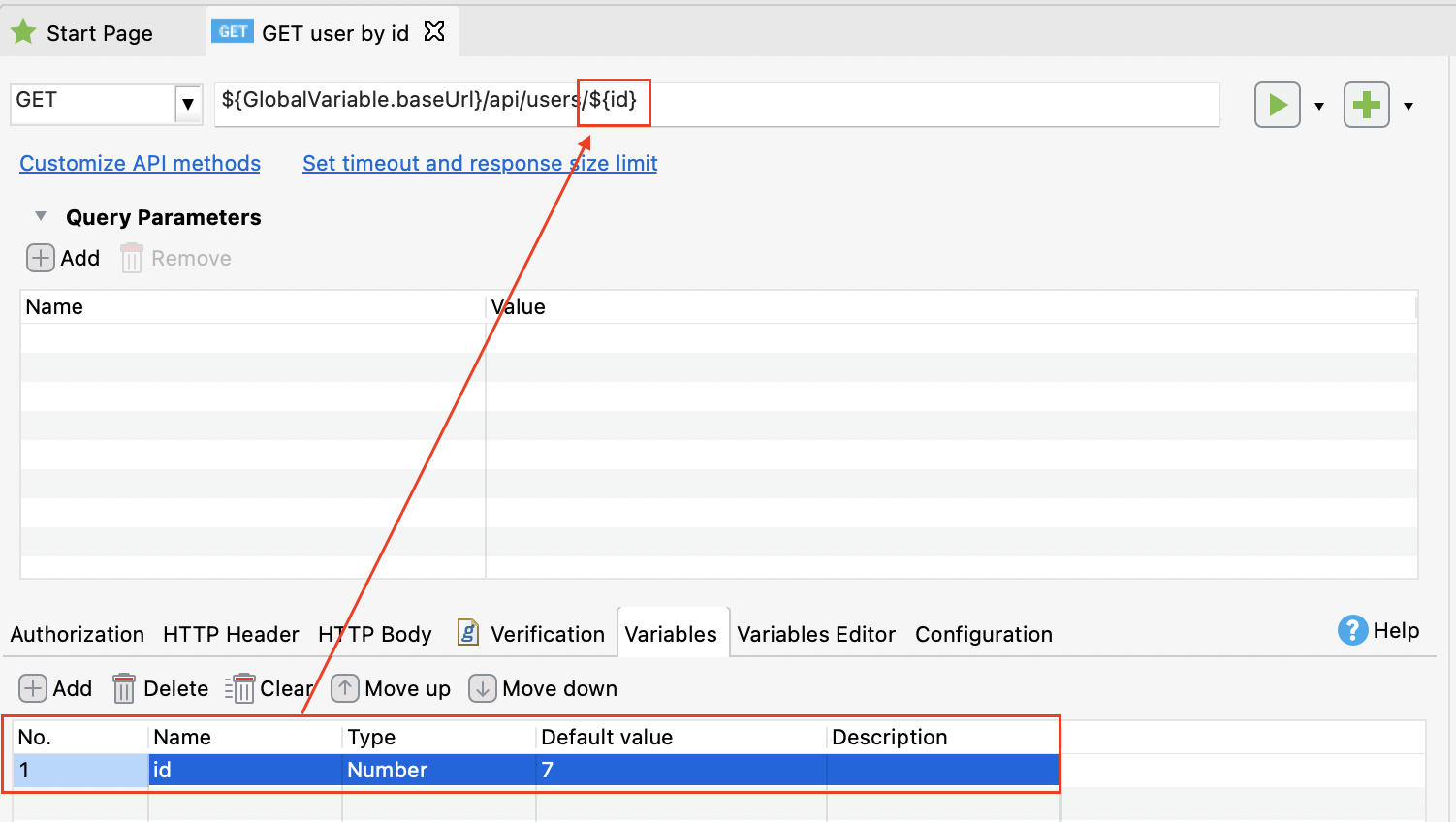
The Variables tab is where you parameterize the request. Every part of a request in Katalon Studio can be driven by a variable: the URL, headers, request body, and authentication values. Instead of hardcoding https://jsonplaceholder.typicode.com/posts/1, you could use ${GlobalVariable.baseUrl}/posts/${id} and drive both values from a dataset. This is the foundation of data-driven API testing in Katalon Studio, and it becomes important as your suite grows beyond a handful of requests. You do not need it for this first test, but the tab is worth knowing about before your request library grows.
Step 3: Send the request and read the response
At the top of the request editor you will see two execution options:
Test Request and Verify: sends the request and runs any Verification script you have written, logging results in the Verification Log. This is the option to use during development.
Test Request and Save to File: sends the request and saves the response body to a local file. Use this when you need to capture raw response payloads for offline inspection.
Select Test Request and Verify. For the JSONPlaceholder endpoint, you should see a 200 status code and a JSON body in the response panel:
{
  "userId": 1,
  "id": 1,
  "title": "sunt aut facere repellat provident occaecati excepturi optio reprehenderit",
  "body": "quia et suscipit..."
}
A 200 with a populated body confirms the request is working. If you see an error instead, check the URL for typos and confirm the method is set to GET.
The Formatter tab in the response panel automatically displays the response in clean JSON, XML, HTML, or JavaScript format, which makes large responses far easier to read than raw text. Use it freely during exploratory testing.
Step 4: Write your first verification
Sending a request and getting a 200 is a start, but you have not yet told Katalon what a passing result actually looks like. That is what the Verification tab is for.
Open the Verification tab in the request editor. If you have written test cases in Katalon Studio before, this tab works similarly to the Script tab in a test case: you can use built-in keywords or Groovy scripts to assert on the response data. On the right side of the tab you will find a panel of built-in snippets that insert assertions automatically. Click Response: Status code: Code is 200. The correct assertion is inserted:
WS.verifyResponseStatusCode(response, 200)Click Test Request and Verify again. This time the Verification Log at the bottom of the screen shows whether the assertion passed or failed.
You can add more assertions the same way. To check that the response body contains a specific field value, add a second line:
WS.verifyResponseStatusCode(response, 200)
WS.verifyElementPropertyValue(response, 'userId', 1)
One important discipline to establish early: keep each verification focused on one thing. If you pile every possible assertion into the Verification tab of a single request, failures become harder to read and harder to debug. Think of the Verification tab as a quick sanity check during development. Formal test reporting, and the assertions that feed into dashboards and release decisions, happens at the test case level in Step 5.
Step 5: Create a test case
The request in Object Repository is useful for quick checks during development. Actual test reporting, coverage tracking, and traceability to requirements all happen at the test case level. A test case that calls your request is how results get counted.
Right-click the Test Cases folder in Tests Explorer and choose New > Test Case. Give it a name that describes what it verifies, for example Verify GET Post Returns 200.
In the test case editor, click the Add Web Service Keyword button. Select the Send Request keyword and choose your GetPost request from Object Repository when prompted.
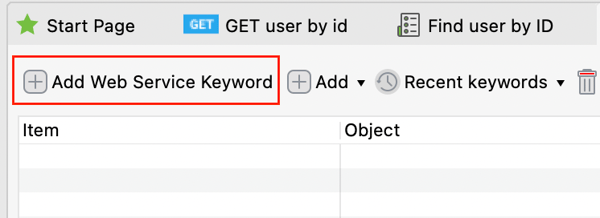
In Script view, the same test case looks like this:
import com.kms.katalon.core.webservice.keyword.WSBuiltInKeywords as WS

def response = WS.sendRequest(findTestObject('Object Repository/GetPost'))
WS.verifyResponseStatusCode(response, 200)
Each step in the test case runs and logs its own result. When the test case executes, the Log Viewer shows a pass or fail for every assertion independently, which means failures are immediately traceable to the specific assertion and the specific field that caused them.
Step 6: Run the test case and read the log
Click the Run button (the green triangle) at the top of the test case editor. No browser selection is needed. API tests do not launch a browser.
After the run completes, the Log Viewer opens at the bottom of the screen. Each step shows a pass or fail result with the information you need to understand what happened. A status code mismatch, for example, shows the received code versus the expected code directly in the log message. There is no guessing and no digging through raw output.
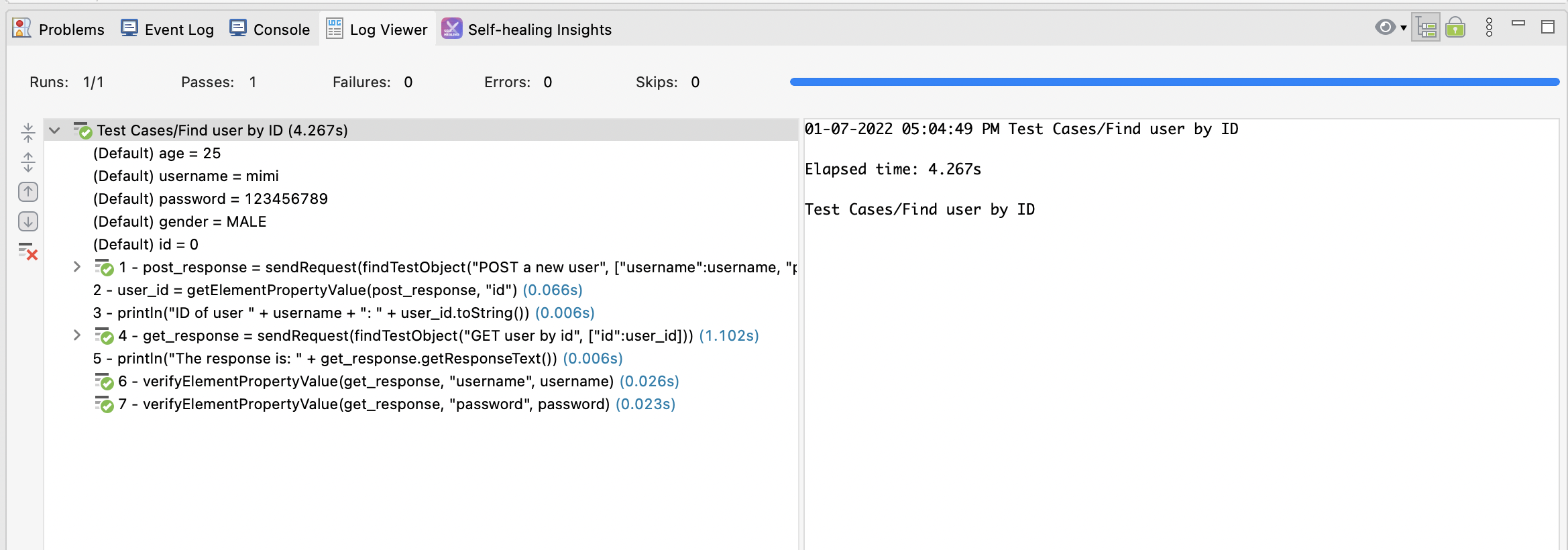
If the test passes at this point, you have a working, reportable API test in Katalon Studio.
Step 7: Add the test case to a test suite
A single test case is useful during development, but ongoing test coverage is managed at the suite level. Test suites are what generate combined reports, enable data-driven execution, and produce the results that feed into True Platform dashboards.
Right-click Test Suites in Tests Explorer and create a new suite. Add your test case using either drag-and-drop or the Add test case tool in the suite editor. Run the suite with the Run button.

Once the suite runs, a combined report is generated. The report shows pass/fail per test case, elapsed time, and a summary of the run. This is the artifact that matters for release decisions, not the individual test case log.
Step 8: See results in True Platform's Test Management module
Running API tests inside Katalon Studio already gives you meaningful results. Connecting Studio to Katalon True Platform gives those results context: they appear alongside your manual tests, web UI tests, and mobile tests in one unified view, mapped to the test plans and requirements that define what "ready to release" looks like for your team.
To connect Studio to your True Platform organization, click the Katalon True Platform icon from the toolbar, or go to Project > Settings > Katalon True Platform. Tick Enable Katalon True Platform Integration, choose your project from the dropdown, then click Apply and close. Once connected, test suite results upload automatically after each run.
Important: if you see a setting labeled "Katalon TestOps" in an older installation of Studio, that is legacy terminology. The current module is Test Management, accessed via your True Platform workspace. If you are unsure of the current navigation path in your Studio version, check Katalon Docs for the latest instructions, as the preferences UI has been updated with the True Platform launch.
Once your results are flowing into True Platform, here is what you gain that a standalone test log cannot provide:
| What True Platform adds to your API test results From isolated logs to release-ready intelligence. |
|
|---|---|
| Release readiness | API test results appear in release readiness dashboards alongside web UI, mobile, and manual test results. You get a single pass/fail picture across your entire test program, not a separate API report that someone has to manually reconcile. |
| Requirement traceability | Test runs map to test plans and requirements, so you can see which API behaviors are covered, which are not, and which requirements still have open defects. This is the coverage visibility that matters in release sign-off conversations. |
| Trend and stability data | Historical pass rate, flakiness detection, and run-over-run trends are tracked automatically. A test that passes 70% of the time across 20 runs is a problem you can only see with historical data. |
| AI-assisted insight | The Katalon AI Assistant's Report & Insight Generator and Root Cause Analyzer agents work across your full result set, including API tests. They surface failure patterns, classify failures as script issues vs. application bugs vs. environment problems, and answer plain-language questions about coverage and release confidence, all from live platform data. |
This is the practical reason to use Katalon Studio for API testing rather than a standalone request tool: the results do not live in a separate place. They feed the same quality picture that your QA manager, test lead, and release team are already looking at.
📚 Read more: Integrate Katalon True Platform with Katalon Studio
Where to go from here
You now have a working API test, verified assertions, and results visible in True Platform. That is the foundation. The next layers that make an API test suite genuinely useful at scale are:
Parameterize with Variables and data-driven datasets. Replace hardcoded values in your requests with Variables, then drive them from a data file. The same test case can then validate dozens of input combinations without duplicating a single script.
Import an OpenAPI or Swagger specification. If your team has an API spec, Katalon Studio can import it and create the Object Repository entries for every endpoint automatically. This is the fastest path from zero to full-endpoint coverage.
Use AI to generate test cases from your spec. Katalon's AI capabilities can analyze an imported OpenAPI spec and generate positive, negative, security, and edge case test cases in one step. See how to generate API tests with AI in Katalon Studio for a walkthrough of that workflow.
Add error handling and negative test scenarios. Testing that your API returns 200 is necessary. Testing that it handles bad input, expired tokens, missing required fields, and oversized payloads with the correct error codes is what separates a solid test suite from a superficial one. Adding try-catch blocks and conditional assertions to your Groovy scripts makes failures informative rather than cryptic. Refer to the API test cases and best practices guide for a structured approach to building those scenarios.
Create custom keywords to reuse test logic. As your suite grows, you will find yourself repeating the same sequences across test cases: authenticate, send a request, extract a value from the response, pass it to the next request. Katalon Studio lets you package these sequences into custom keywords that any test case can call. This keeps scripts readable and reduces the maintenance surface when endpoints change.
Integrate into your CI/CD pipeline. API tests are lightweight and fast, which makes them ideal for running on every commit. See integrating Katalon with your CI/CD pipeline for setup instructions across GitHub Actions, Jenkins, and Azure DevOps.
Build a broader API testing strategy. Once your tests are running consistently, the strategic questions become more interesting: how do you prioritize endpoints, manage test data at scale, handle microservices dependencies, and enforce contract testing across teams? The API Testing Strategy guide covers all of that in depth.
API testing in Katalon Studio is one of those things that is genuinely easier to start than it looks. The first test takes under 30 minutes. The infrastructure you build from there, tied into True Platform's Test Management module, scales as far as your test program needs to go.

|
