


.svg)

Writing test cases sounds simple until you're actually doing it. You read a requirement, try to figure out what "done" even means for it, write out steps, realize you missed three scenarios, go back, revise, and by the time you feel okay about it, the sprint has moved on without you.
This happens to every team working at any real scale. It is just what manual test case creation costs you, and it is the problem autonomous test generation was supposed to solve at a category level.
AI test case generation in Katalon True Platform addresses this through the Katalon AI Assistant. It takes the part where you stare at a requirement not knowing where to start, reads it, asks about anything unclear, and produces test cases for you to review. Once you approve them, it can run the tests itself.
What follows covers the whole process based on how the platform works right now.
First, a Quick Picture of What You Are Working with
Katalon True Platform is more than the Studio IDE. It ties together test planning, authoring, execution, and analytics.
- Katalon Studio for scripted automation across web, mobile, API, and desktop
- Test Management for planning and tracking both manual and automated tests
- Test Execution Cloud for running tests across browsers and devices without managing your own infrastructure
- Reporting and Analytics for visibility into release readiness and test trends
- True Production Insights (TrueTest) for generating tests from real user behavior after release
Katalon AI Assistant sits across all of this. It is not a separate product you open in another tab. It lives inside the platform as a chat panel that stays aware of whatever page you are currently on.
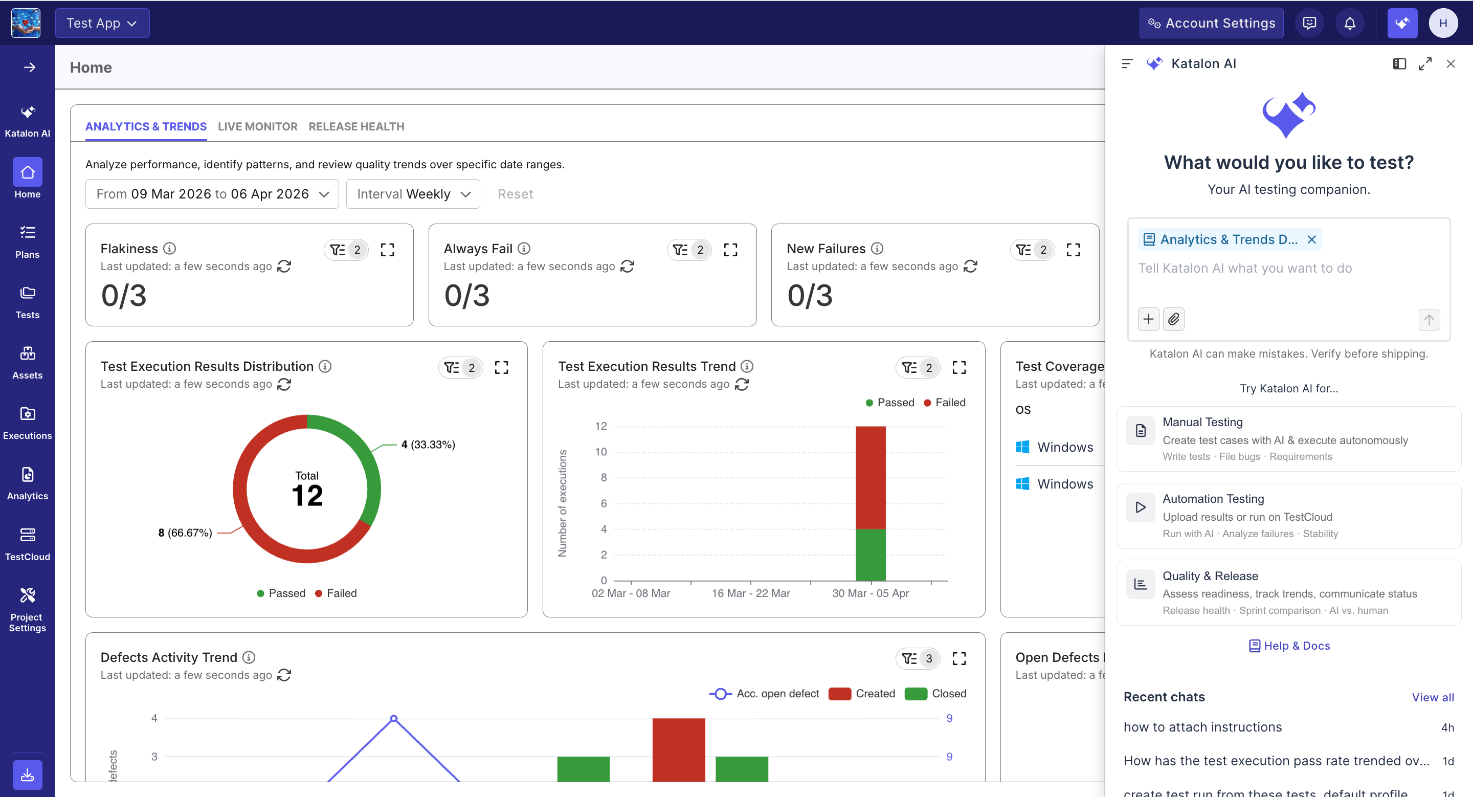
Behind the chat, six specialized agents handle different parts of the job. You never pick one directly, but knowing what each does makes the workflow less mysterious:
| AGENT | What It Does Each agent owns a step. Your team owns the outcome. |
|---|---|
| Requirement Analyzer | Reads your requirement and spots gaps or ambiguities before test generation starts. |
| Test Generation Agent | Produces the set of test cases needed to cover a requirement. |
| Autonomous Test Runner | Executes manual test cases on its own, no automation scripts needed |
| Root Cause Analyzer | Looks at a failed test and tells you whether it is a bug, a bad test step, or a flaky test |
| Bug Reporter | Drafts a structured Jira or ADO ticket from the failure context |
| Report and Insight Generator | Gives you a plain-language summary of project health and release readiness |
Before You Start: Two Things You Need
Two things need to be in place before any of this works, both set up by an admin.
1. AI features enabled. Go to Manage Systems > Configurations > AI Services and make sure AI is switched on for your project. If you do not see the Generate Test Cases button anywhere, this is almost certainly why.
2. A Jira or Azure DevOps integration. The AI pulls requirements directly from your ALM. Without this connection, there is nothing for it to read. Setting it up is a one-time step and the documentation for both integrations is in the Katalon AI Assistant docs.
Step 1: Open a Requirement
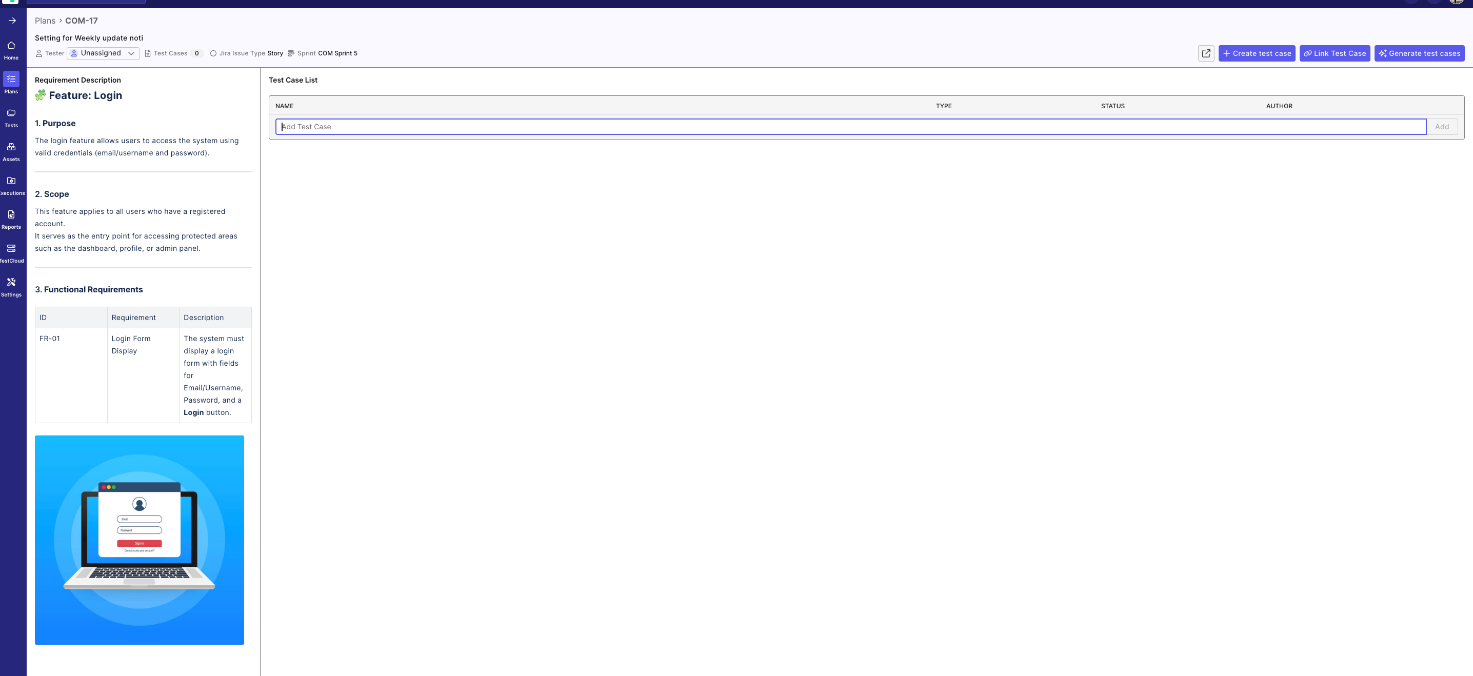
Go to the Plans section. You will see your sprints and releases imported from Jira or ADO. Click into a sprint, then click any requirement to open its detail page. This is where automated test case generation from requirements begins - the AI works directly from what is written in the ticket.
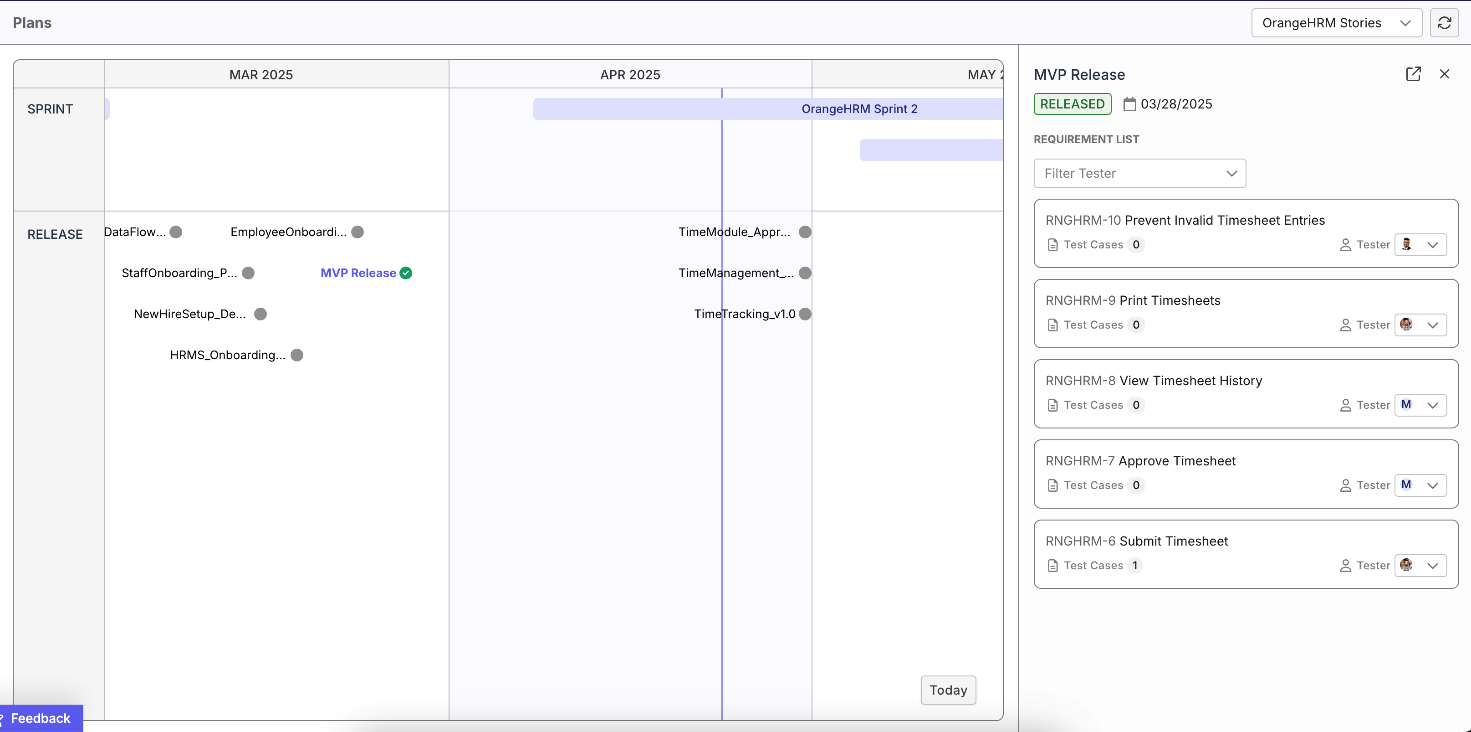
The AI reads the ticket summary and description. It can also read images attached to the ticket, which is useful if your requirements include diagrams or annotated screenshots. What it cannot read are non-image attachments like PDFs or Word docs, so if important context lives there, copy the relevant bits into the description before you generate anything.
Step 2: Generate Test Cases
On the requirement detail page, hit Generate Test Cases in the top-right corner.
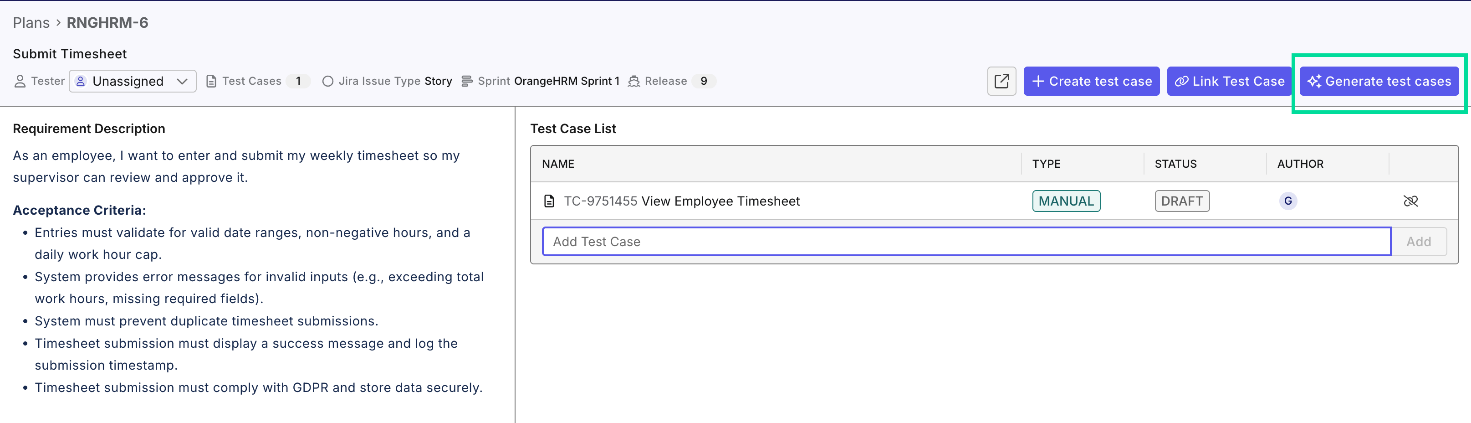
If the AI thinks your requirement is unclear or missing information, it will show an Additional Context Refinement section before generating anything. Do not skip this. The questions it asks are usually pointing at real gaps in the requirement - things like missing success criteria or undefined edge cases. Adding context here, including the app URL and any test data, makes a real difference in what comes out.
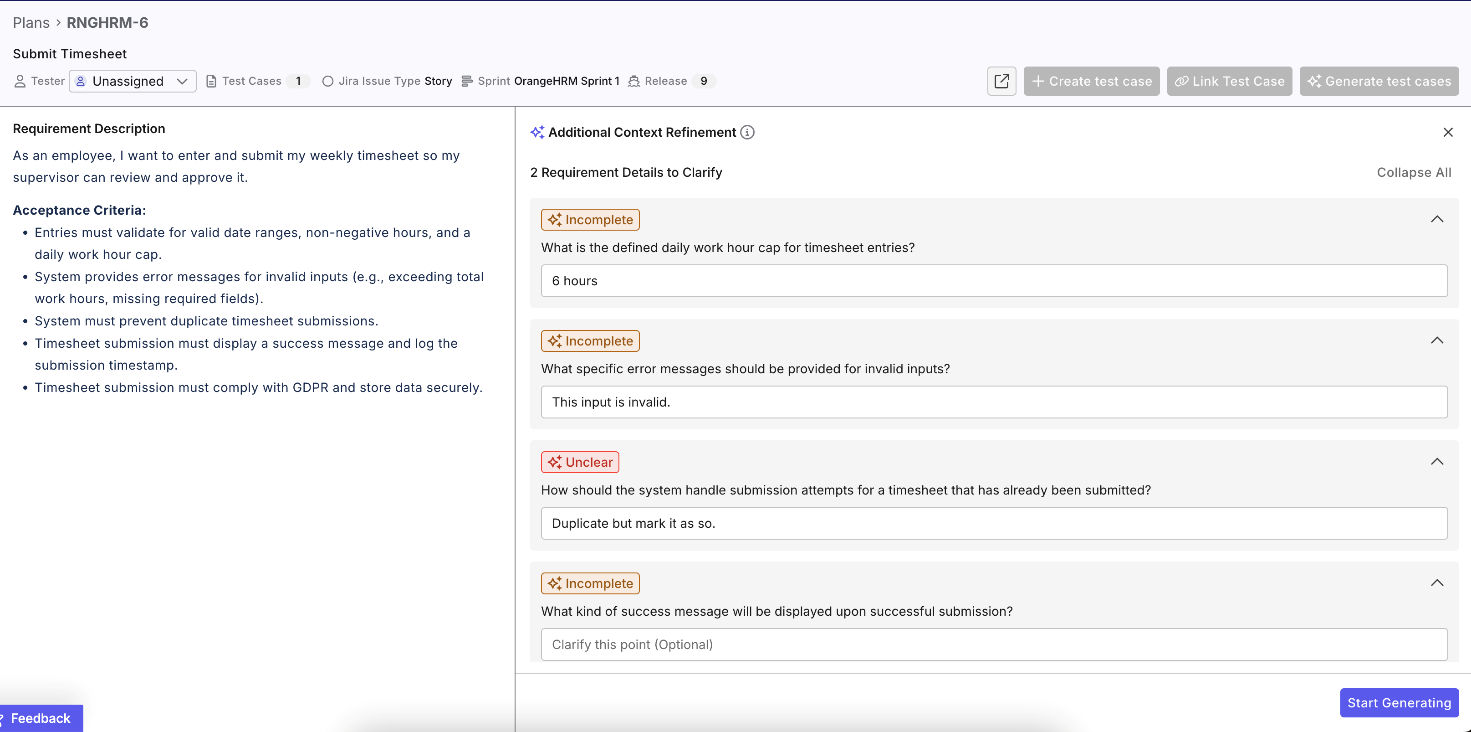
Click Start Generating and wait. The generated test cases appear highlighted in purple so you can tell them apart from anything already in the system.
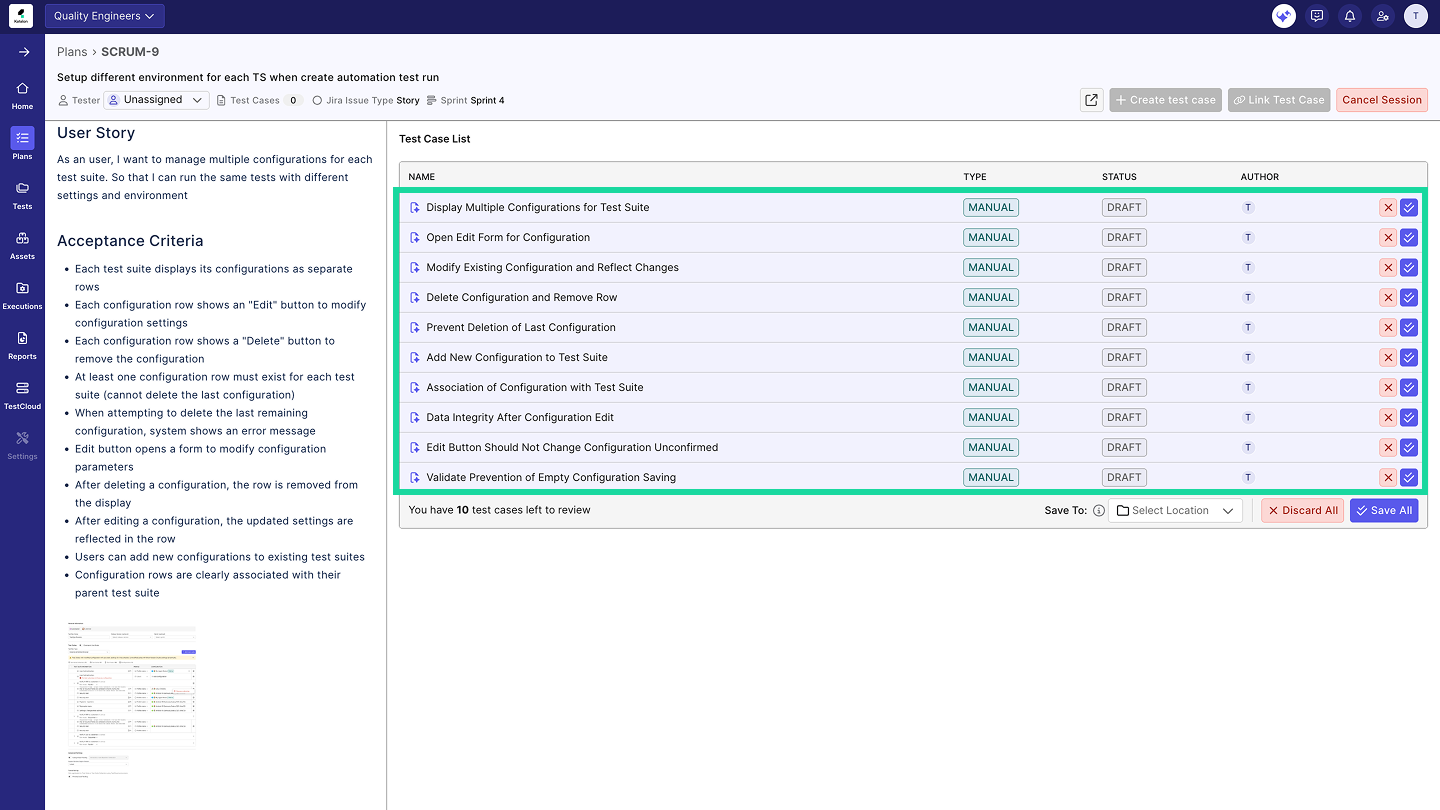
Read through them. The AI does a decent job covering the obvious scenarios, but it will sometimes miss context that only your team knows. Treat this as a first draft, not a finished product.
Step 3: Generate and Review Test Steps
Click any generated test case to open a detail panel on the right. From here you can click Generate Steps to have the AI write out the individual steps for that test case.
Steps are generated based on the test case name, description, preconditions, and the linked requirement. If they come back vague or wrong, hit Regenerate Steps for another attempt, or click into any step to edit it directly.
When a test case looks good, click Save. If it is not useful, Discard it. Once you have gone through the full list, Save All or Discard All to finish the batch.
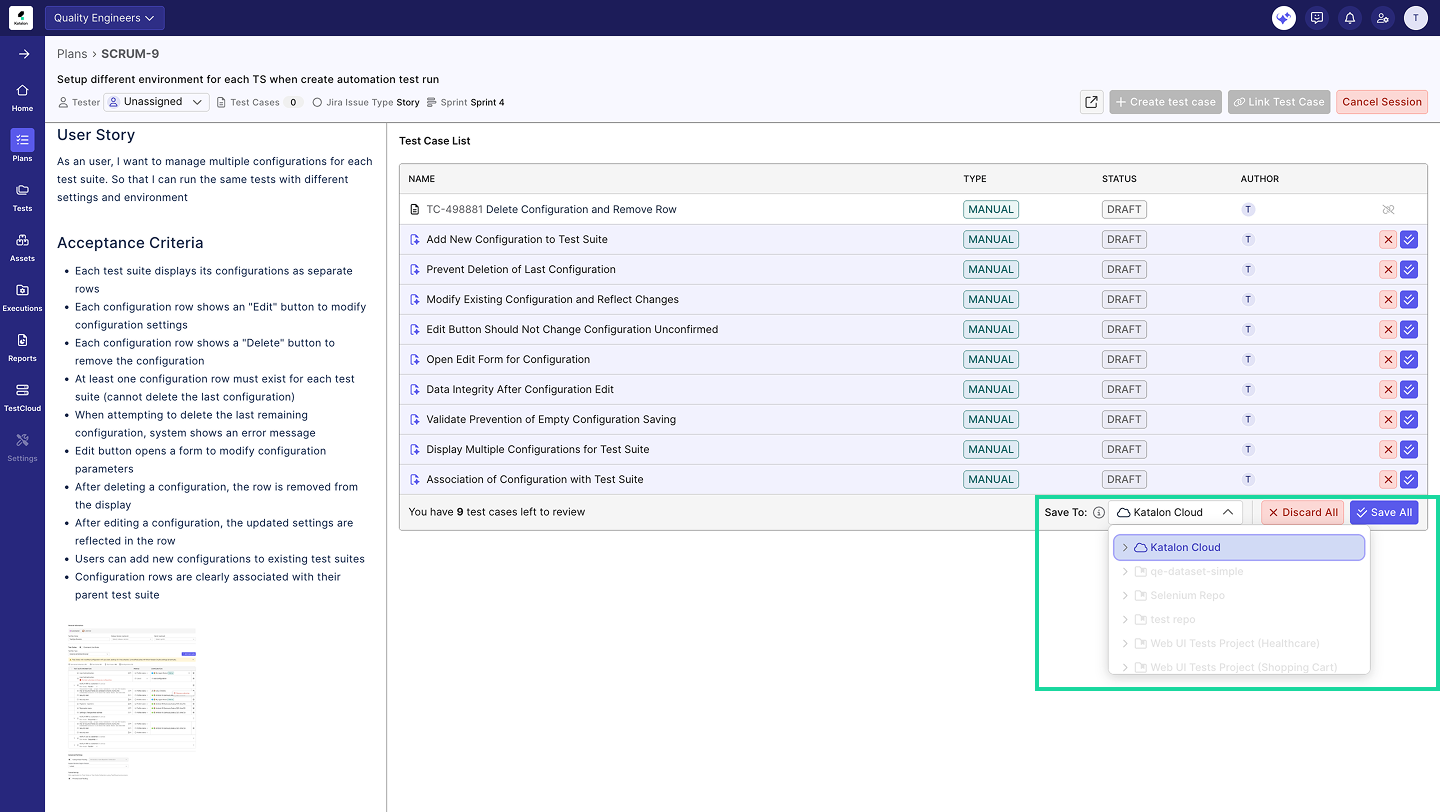
📚 Read more: How to Review and Validate AI-Generated Test Cases (Without Blindly Trusting Them)
Saved test cases are automatically linked back to the original requirement, so traceability is built in from the start. If you are new to structuring test cases, the guide on how to write test cases for automation testing covers the fundamentals worth knowing before this step.
Step 4: The AI Confidence Rating (Pay Attention to This One)
Most people ignore this the first time and regret it.
When you create a manual test run, each test case gets an AI Confidence rating: High, Medium, or Low. This reflects how clearly the test steps are written from the AI's point of view. You can only use the Autonomous Test Runner when all test cases in the run are rated High.
If you have Medium or Low cases, open them and sharpen the steps. Vague instructions like "go to the settings page" will score poorly. Specific ones like "navigate to https://yourapp.com/settings and click Account Preferences" will score well. It sounds like extra work, but the specificity improves the tests even beyond what the AI needs.
Do not ignore Medium confidence ratings. It is tempting to push through and hope it works. It usually does not. Fix the steps.
Step 5: Run with AI
Once everything is High confidence, click Run with AI on the test run page. The Autonomous Test Runner takes over.
It works through each step on its own. If it hits something it cannot figure out, it pauses and sends you a notification asking for input. You answer, it continues. When the run finishes you get a full report: pass/fail per test case, step-by-step results, screenshots, video, and an AI log.
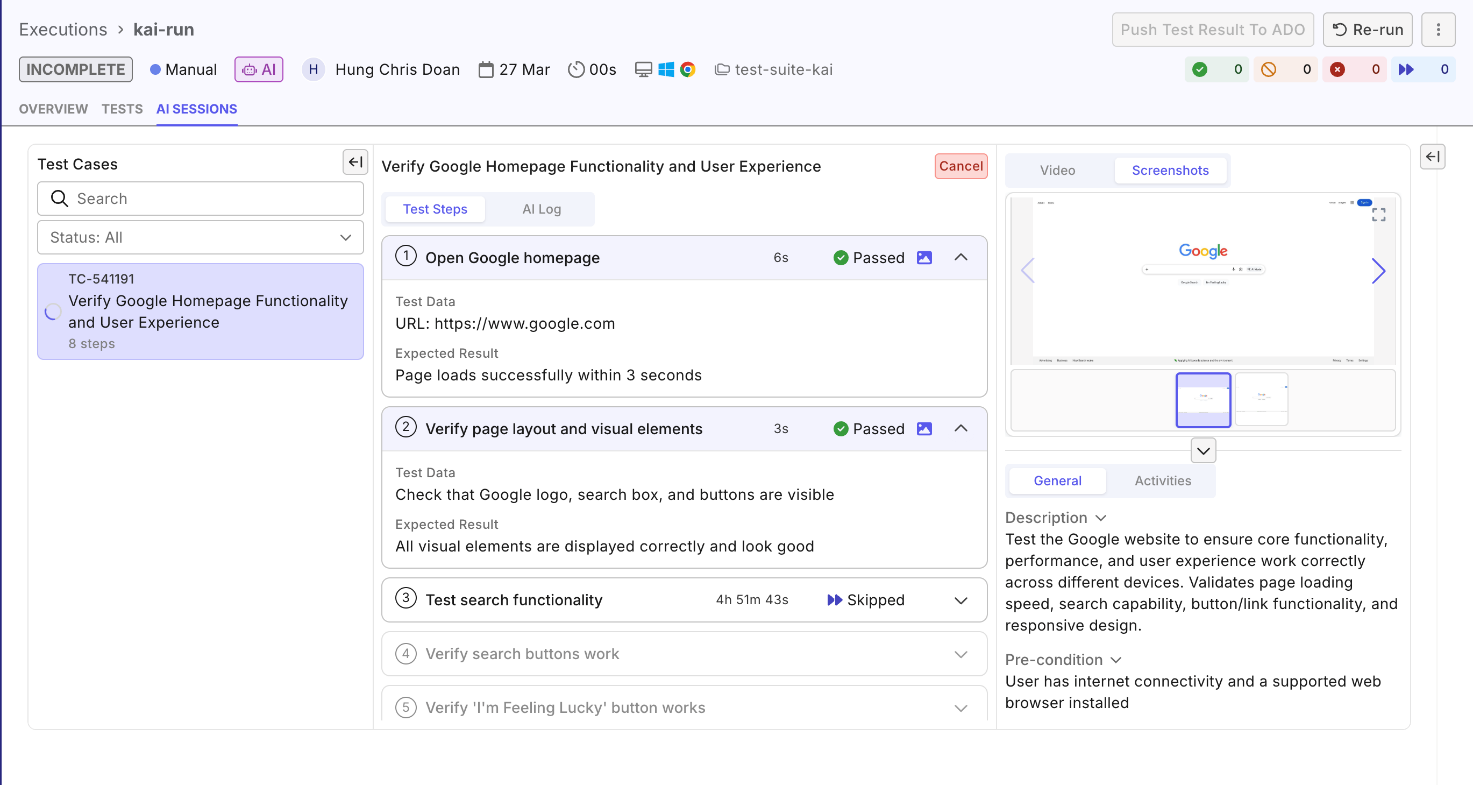
Go through the results properly before clicking End Run. The results only become available in your analytics and reports after you end the run, so ending it prematurely is a pain.
Step 6: When Tests Fail
Open any failed result and click Analyze. The Root Cause Analyzer reviews the execution and tells you what it thinks happened: a bug in the application, a problem with the test step itself, or a test that is just flaky.
This matters because not every failure is a bug. Filing a Jira ticket for a badly written test step wastes everyone's time. Let the AI make the call first, then decide.
If it does look like a real bug, ask the assistant to file a ticket. It drafts the bug report from the execution logs and attaches screenshots as evidence. The ticket shows up in Jira or ADO linked to the failed result. One thing to know: file one bug per failed test case. Trying to batch multiple failures into one ticket produces a confusing report that nobody wants to triage.
Step 7: Checking in on the Bigger Picture
The assistant can also answer project-level questions. Open the chat and ask things like:
- "What is our release readiness for this sprint?"
- "Which test cases have been failing consistently?"
- "Where do we have coverage gaps?"
You can also trigger this from inside any report or dashboard. There is an Insight button that kicks off an AI analysis of the data currently on screen. If you see a weird spike in failures on a particular day and want to understand why, that is the fastest way to get an answer without digging through logs manually.
A Few Things That Actually Help
After going through this workflow, a few practices make a real difference.
Put the app URL in the requirement. The AI needs to know where to go, and without it, things get vague fast.
Give the requirement real context before generating. Ask the assistant to review the requirement first and flag what it thinks is missing, then fix those things before you hit Generate Test Cases. The test cases come out sharper.
Do not pad steps for the sake of it. Some test cases need five steps, some need fifteen. The AI confidence rating will flag when they are too thin.
Do not ignore Medium confidence ratings even when the deadline is close. It is tempting to push through and hope it works. It usually does not. The same principle applies when you are using AI in regression testing - precision in step definition is what separates a reliable run from a flaky one.
If you want to understand how this fits into the broader picture of AI in quality assurance and where autonomous testing is heading, that context is worth reading separately. For the mechanics of how the Katalon AI Assistant is structured across the full platform, the Katalon AI Assistant documentation covers the complete agent architecture.
Wrapping Up
The honest version of what this feature does: it cuts out the part of test case writing that is mechanical and repetitive, and leaves you with the part that actually needs a human. You still review everything. You still decide what gets approved. But you are not starting from a blank page every time. If your team is spending a disproportionate amount of sprint time just writing test cases, this is worth trying.

|
